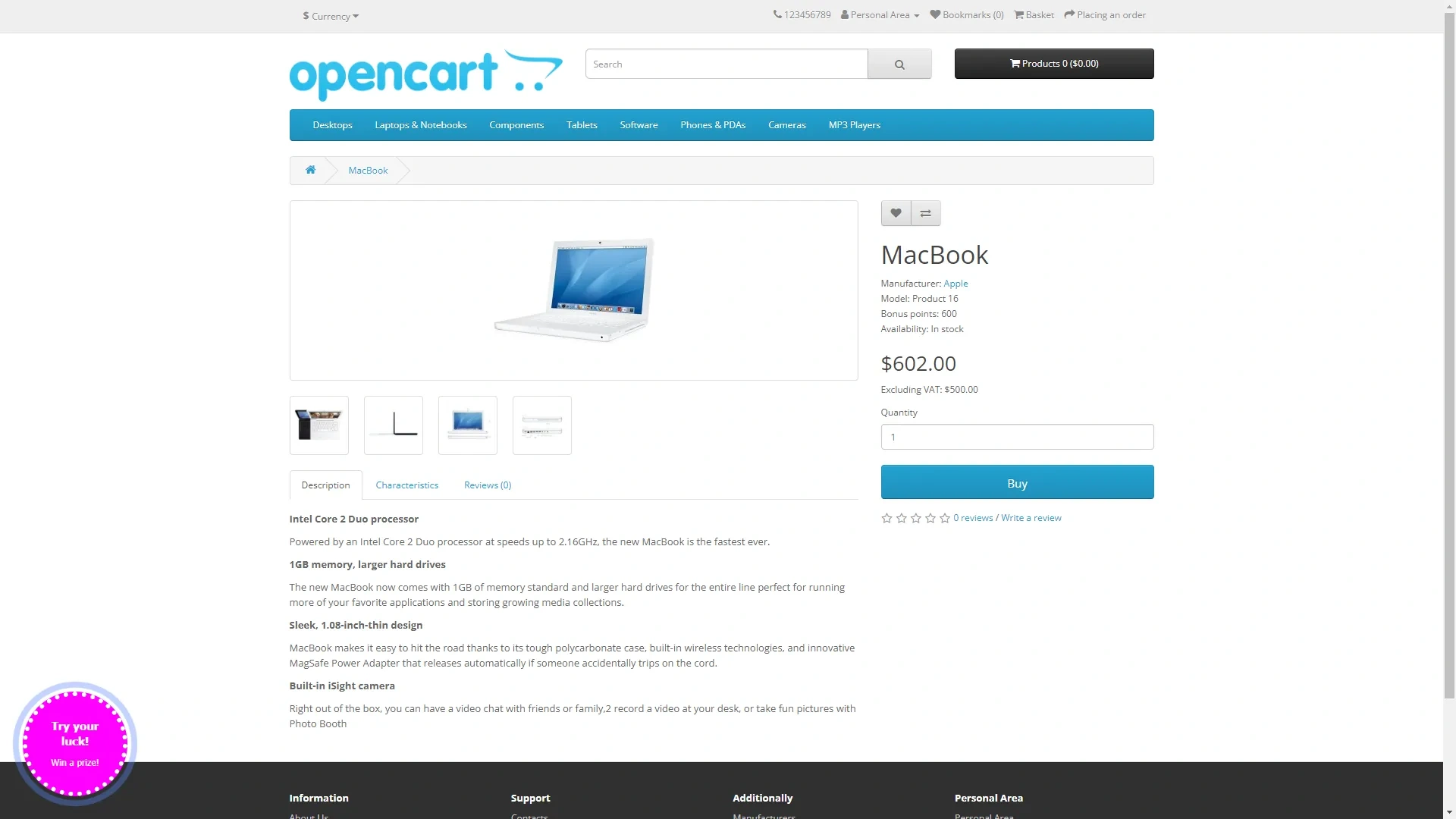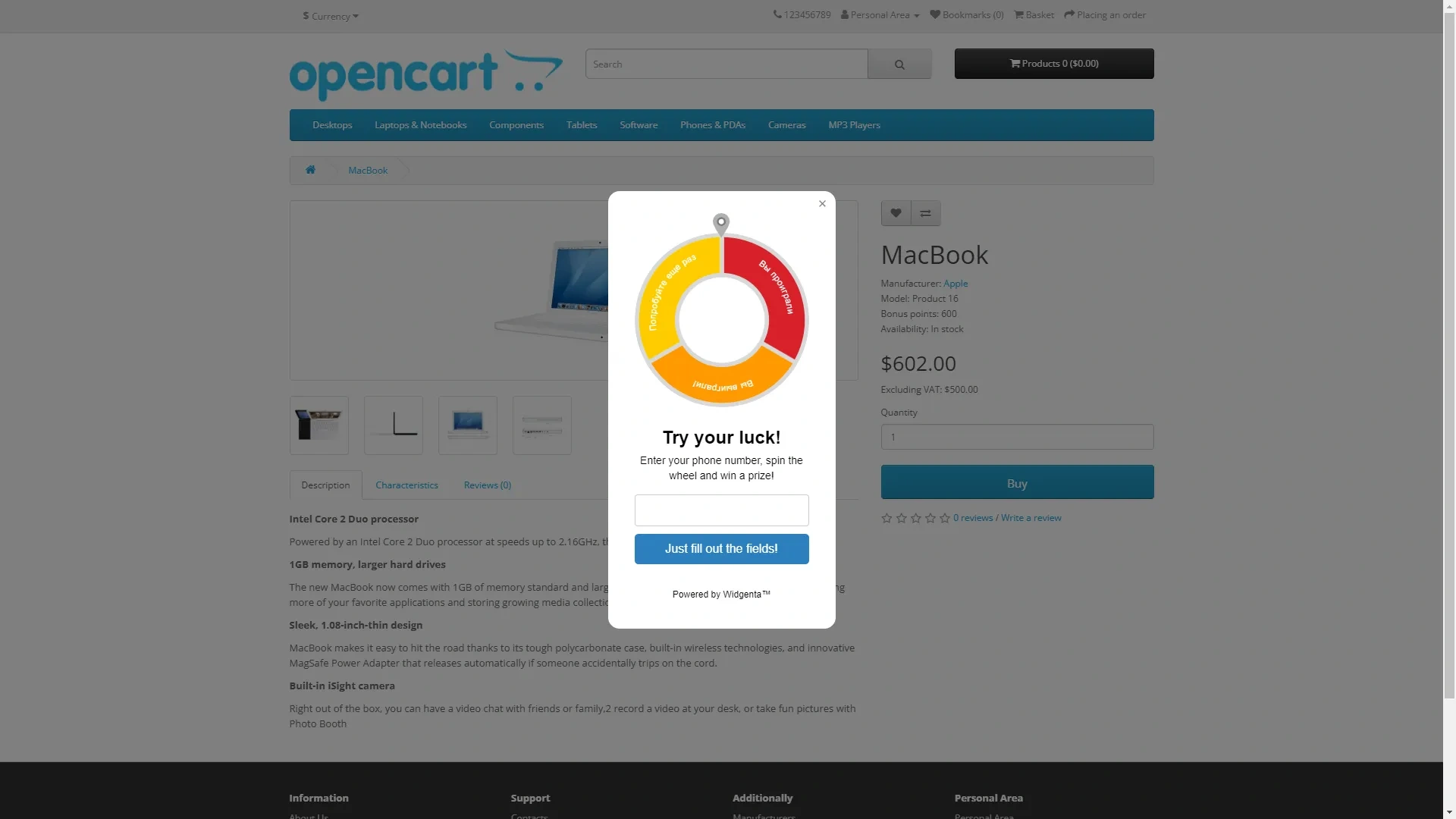
Widgenta widget placement on OpenCart
There are two accommodation options:
Placing Widgenta widget on all pages of OpenCart site
After creating, customizing and saving the widget, you have the code available for posting on your site.
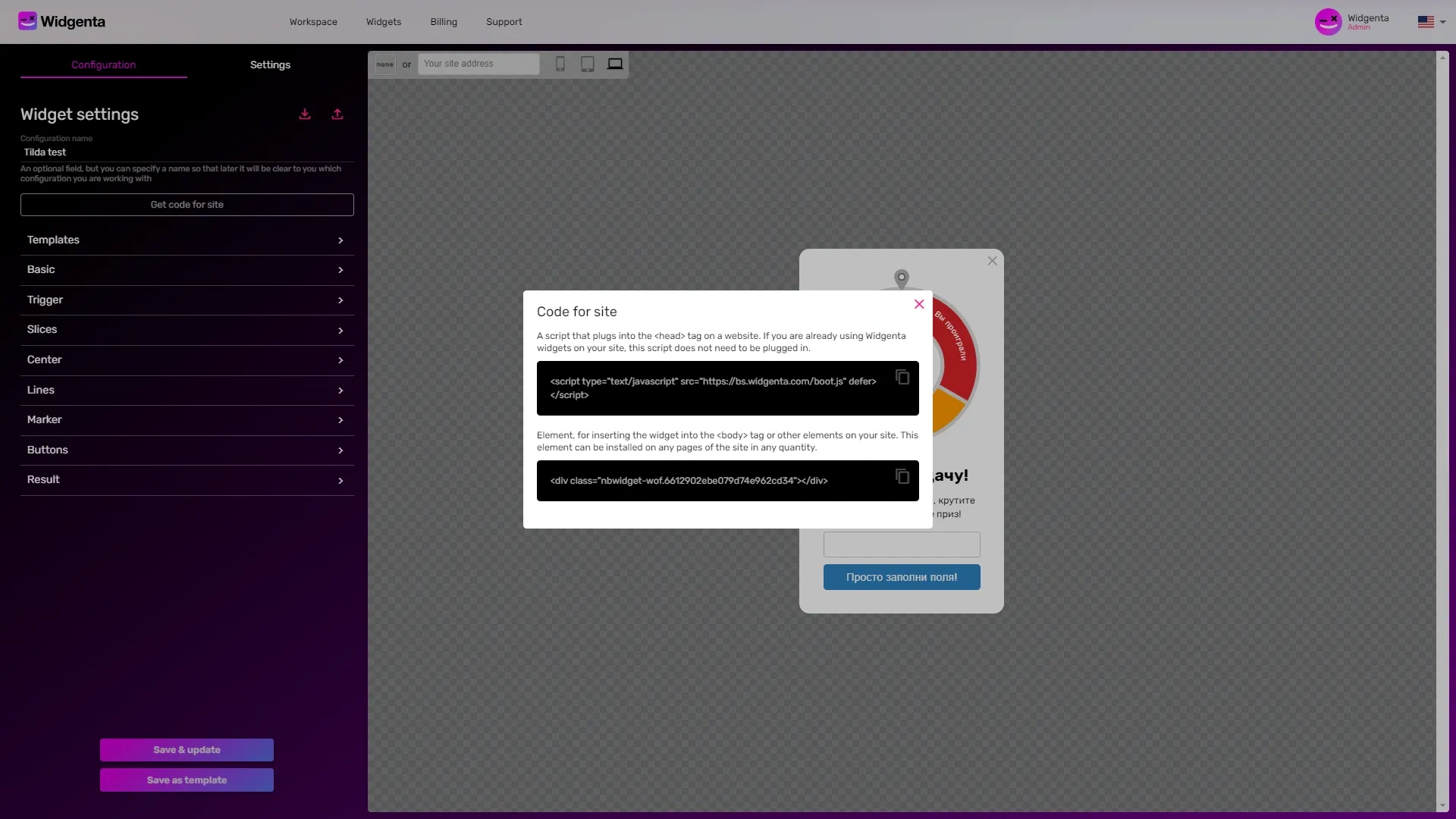
Copy the first code for <head> and go to the OpenCart administration panel.
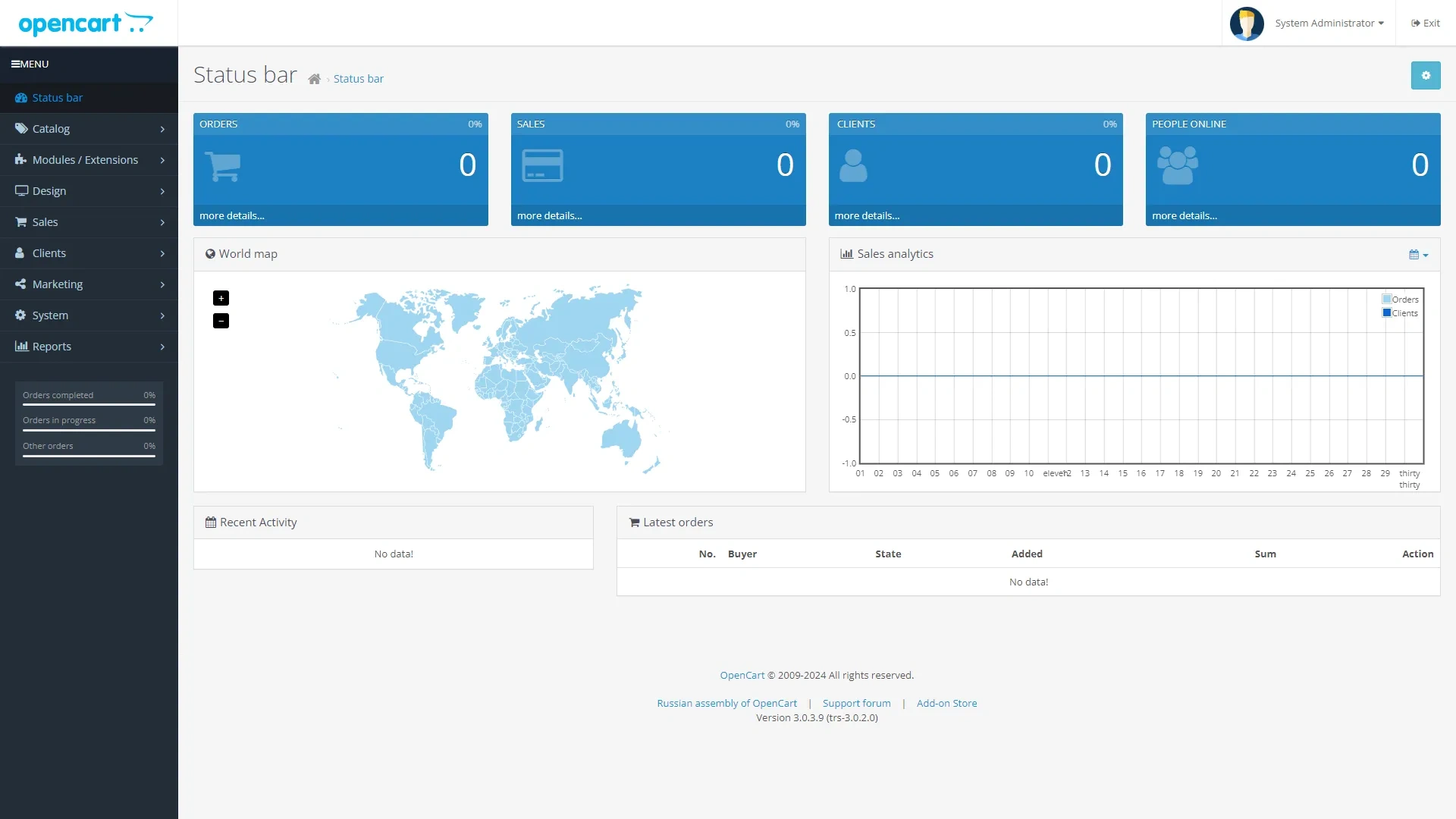
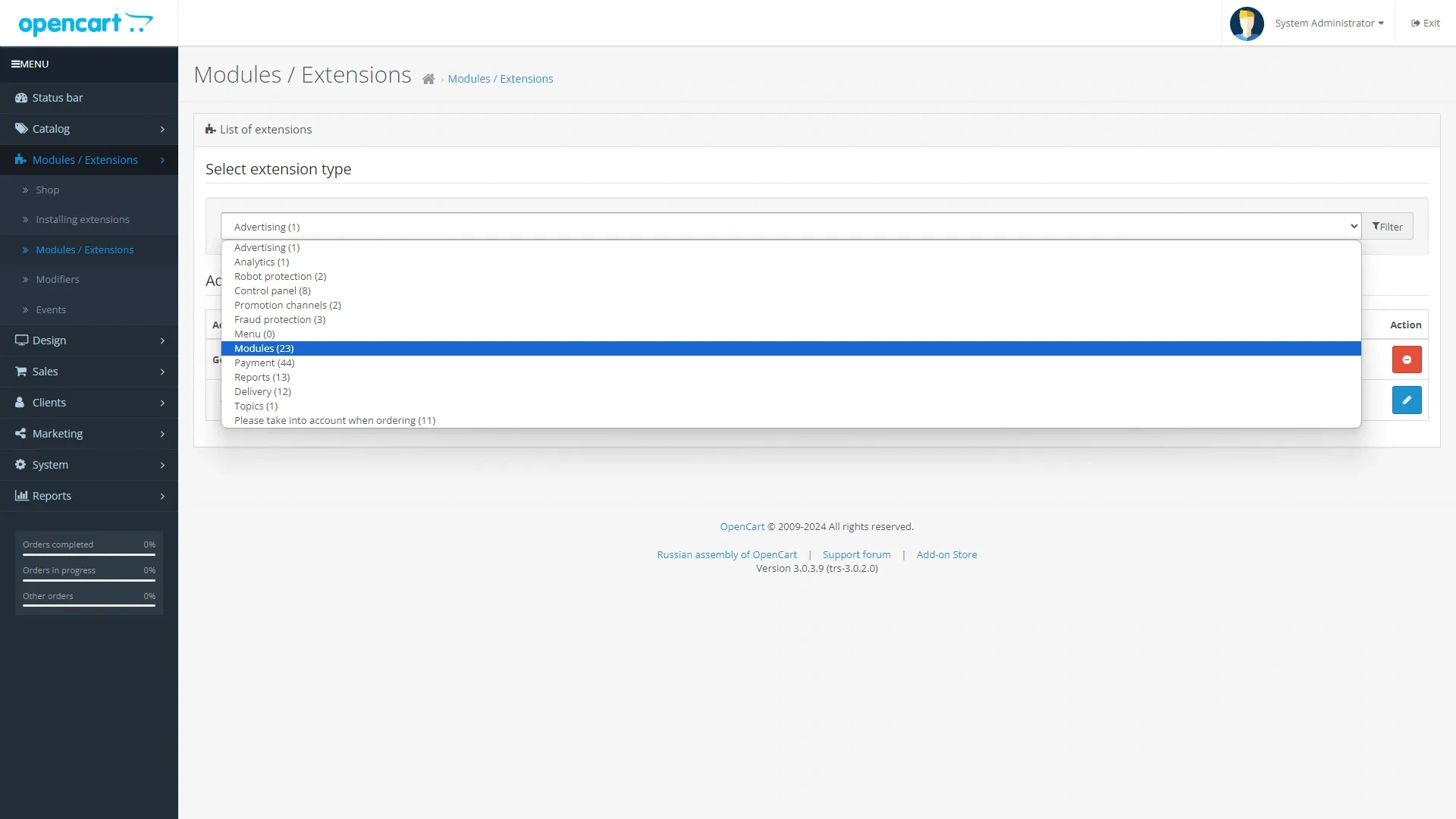
Go to the «Modules / Extensions» menu item and select the «Modules» section from the drop down list.
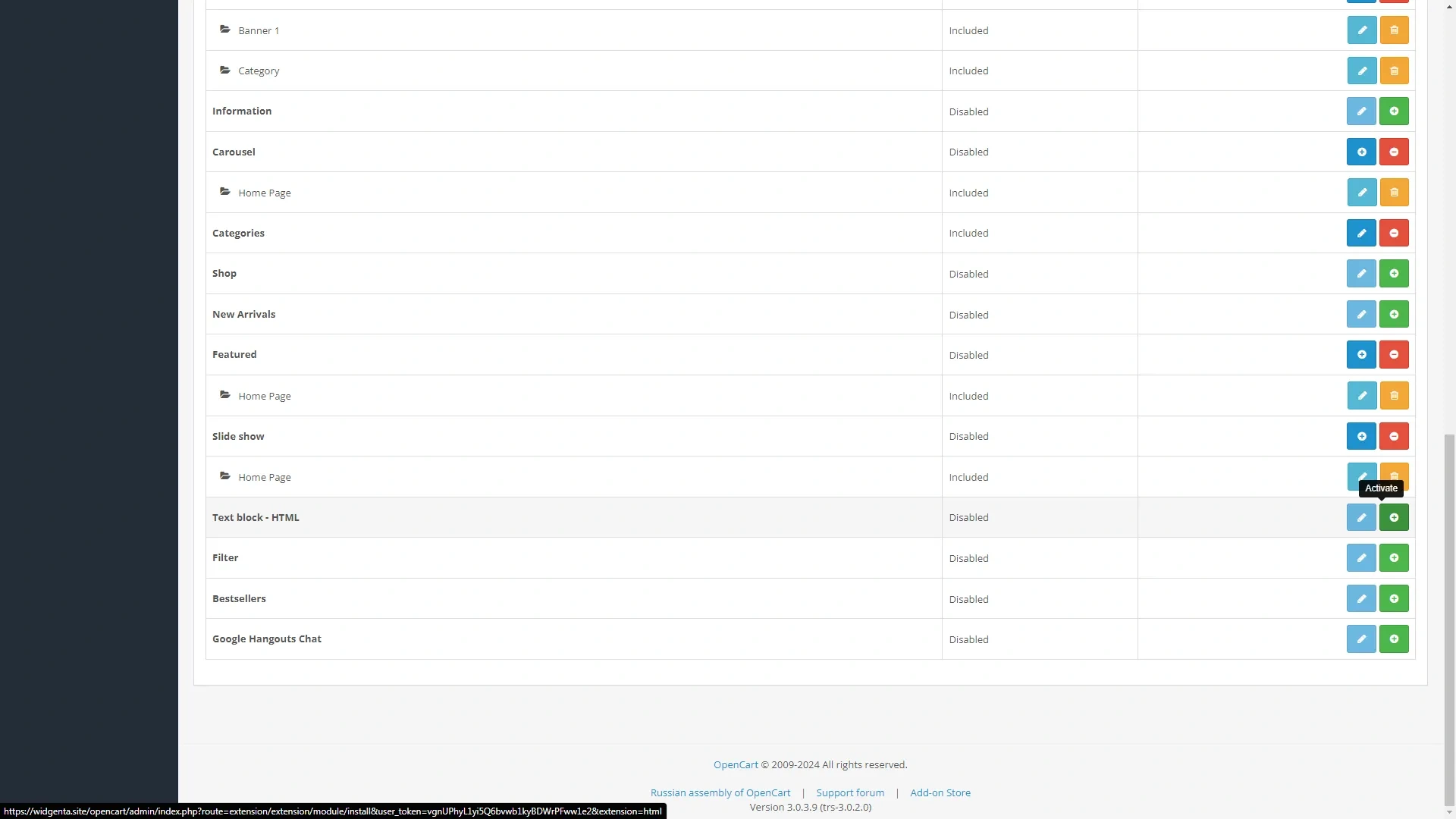
Activate the «Text Block – HTML» module with the «+» button.
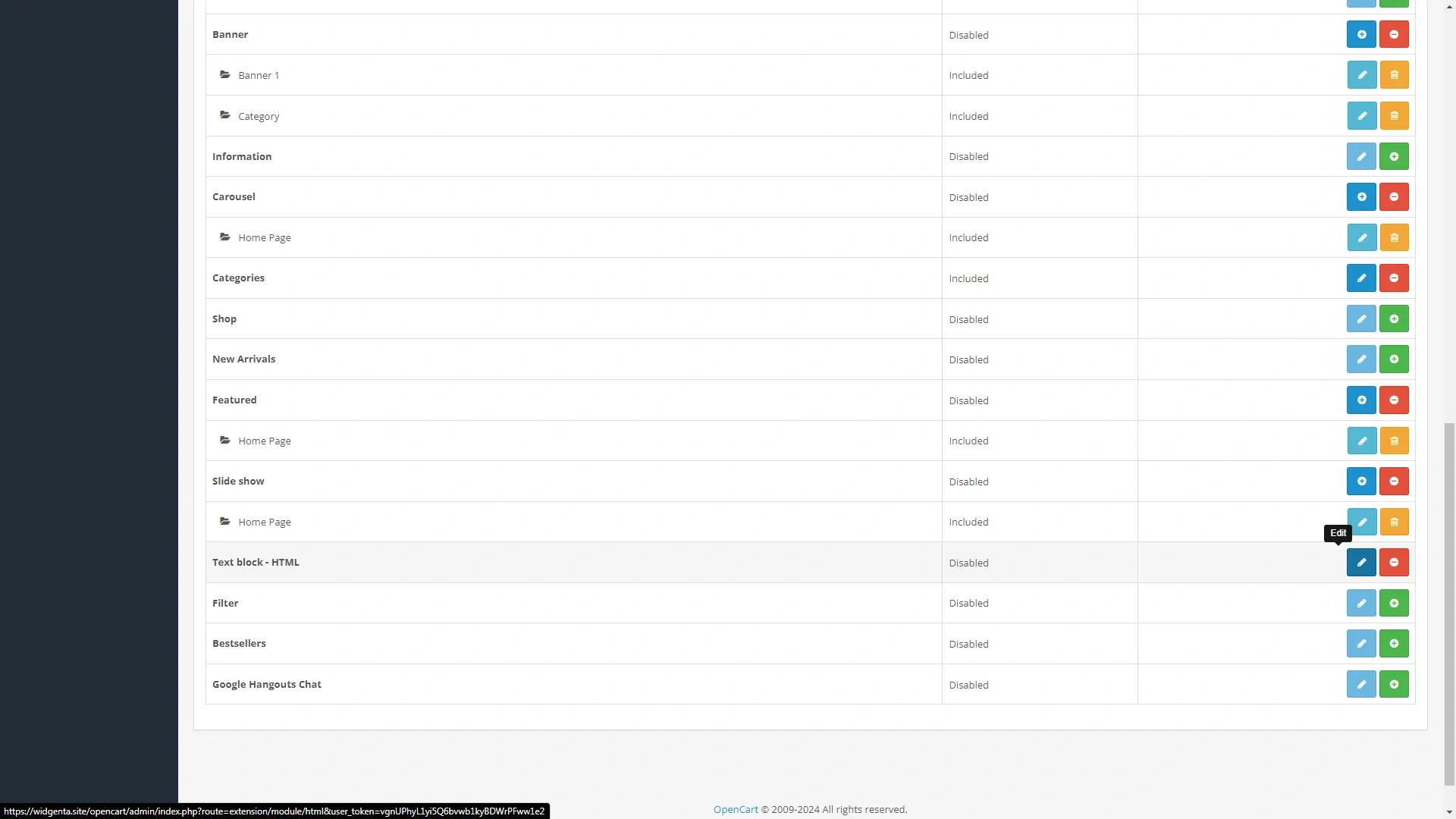
Enter edit mode by pressing the corresponding button.
The page for creating a new text module opens.
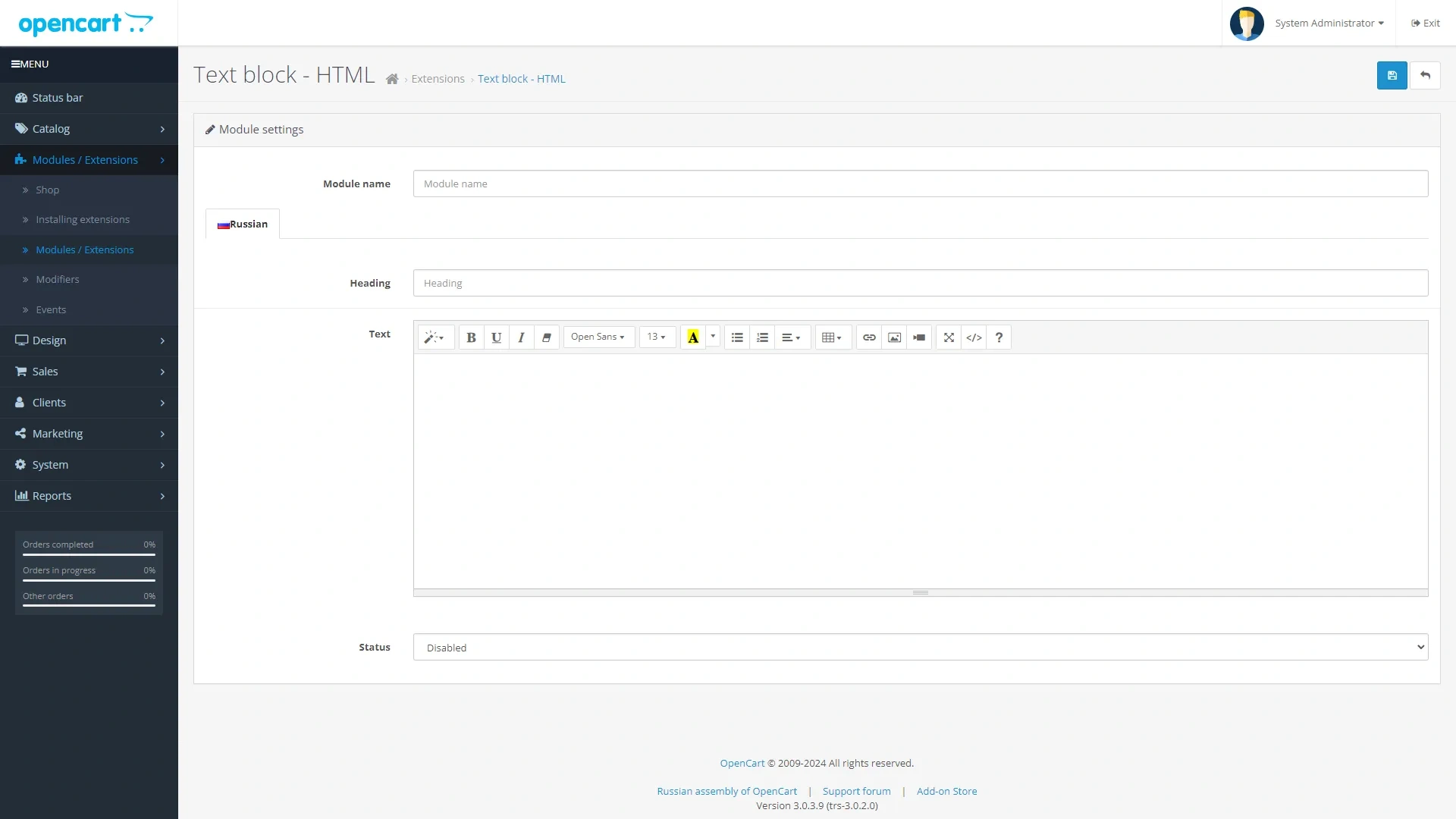
Enter the name of the module «Widgenta», select the status «Included» and in the «Text» window go to the code editing mode by pressing the «</>» button, where we insert both parts of the code from the Widgenta widget.
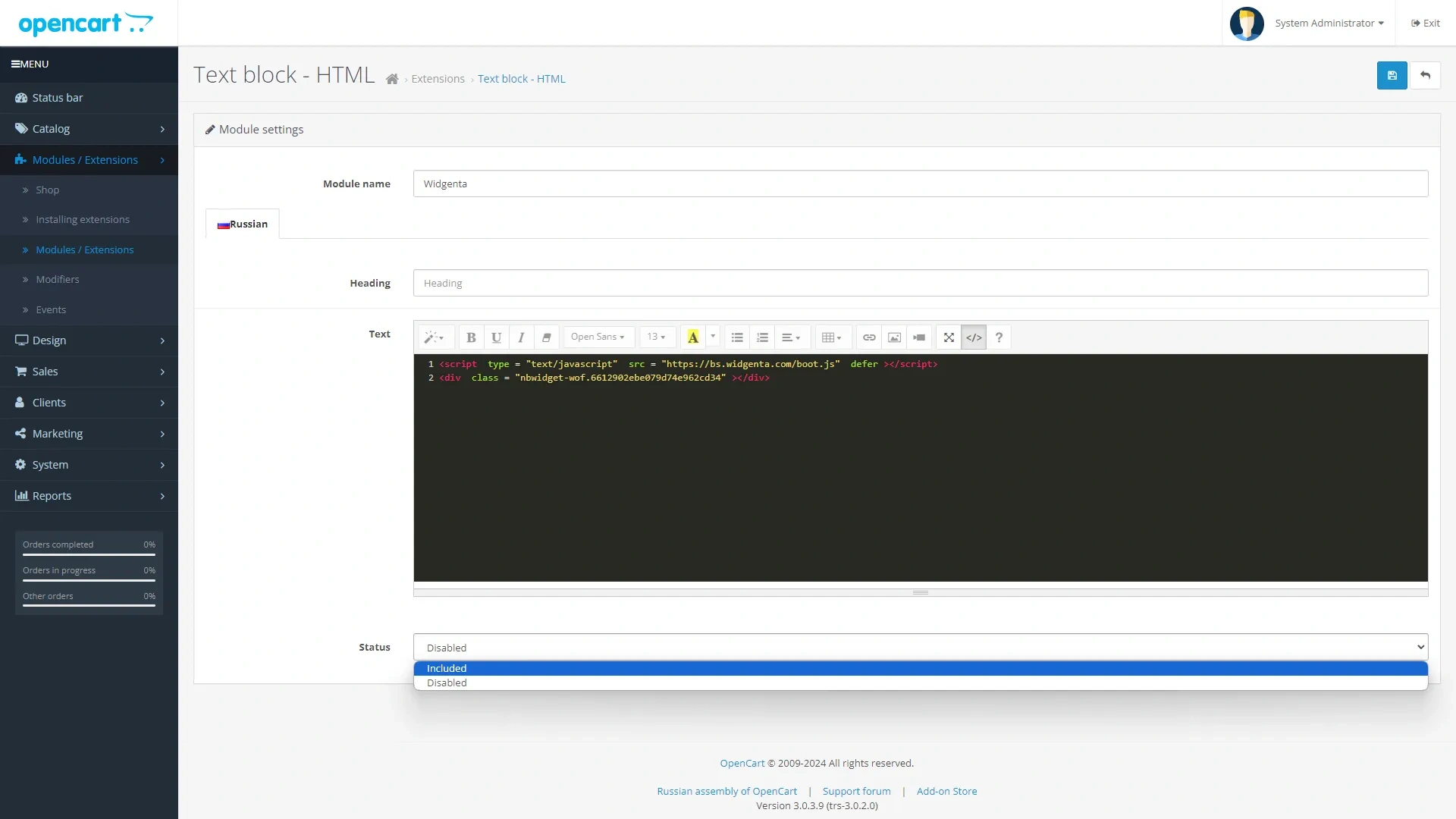
Before saving the created module it is necessary to exit the code editing mode and initialize the widget by clicking on the «</>» button, only then save the module.
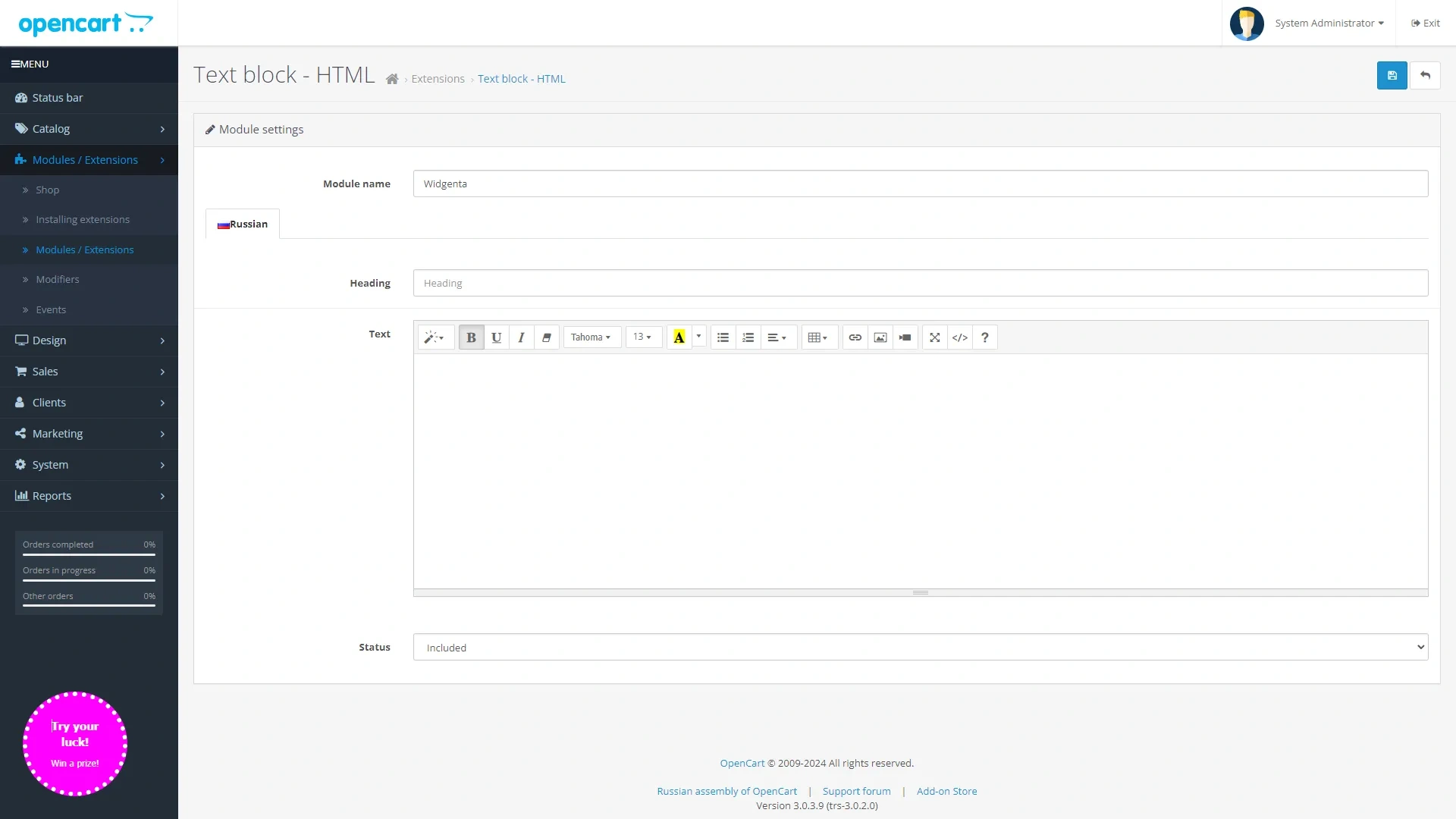
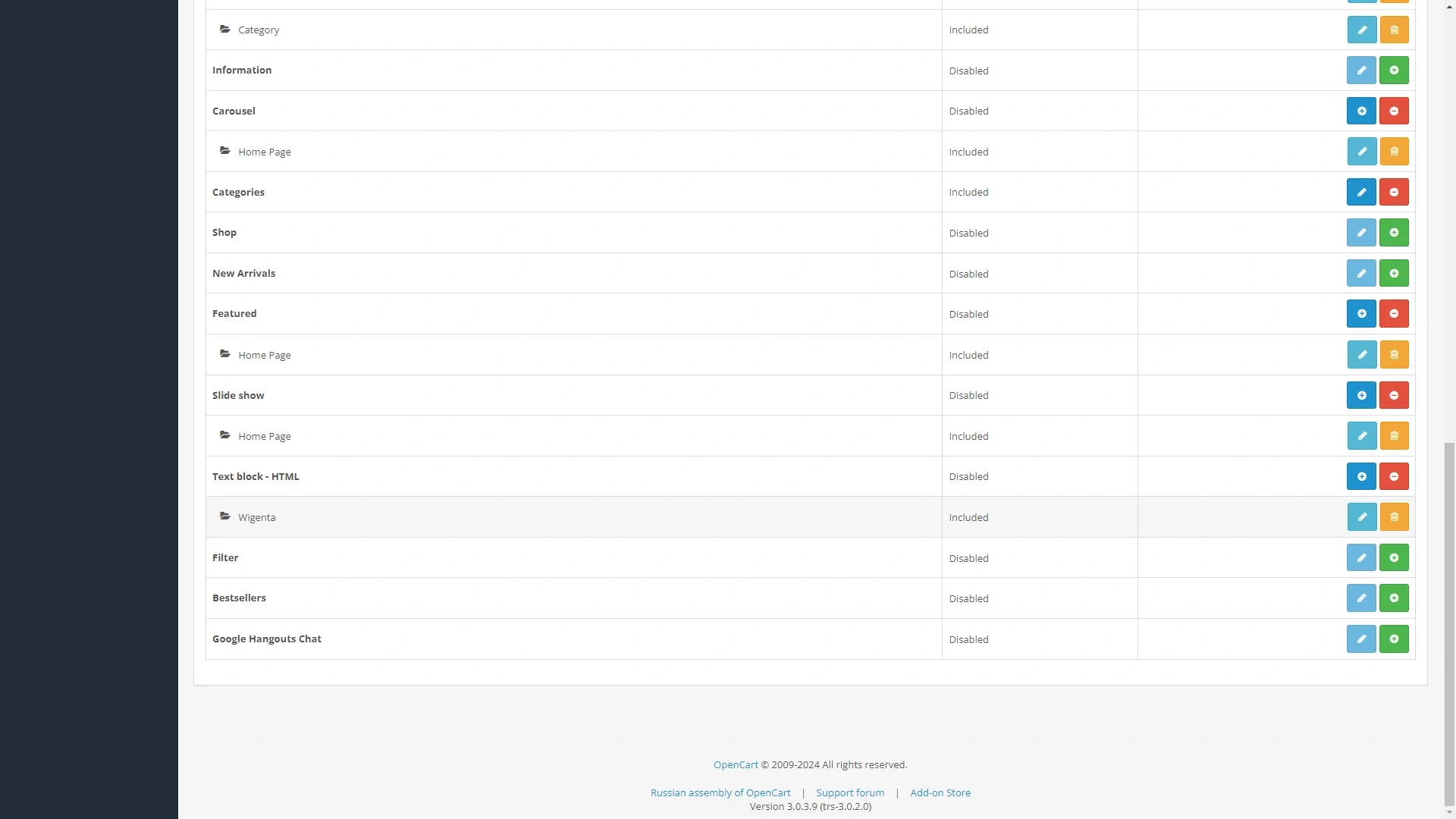
The created module will be displayed in the list of available modules.
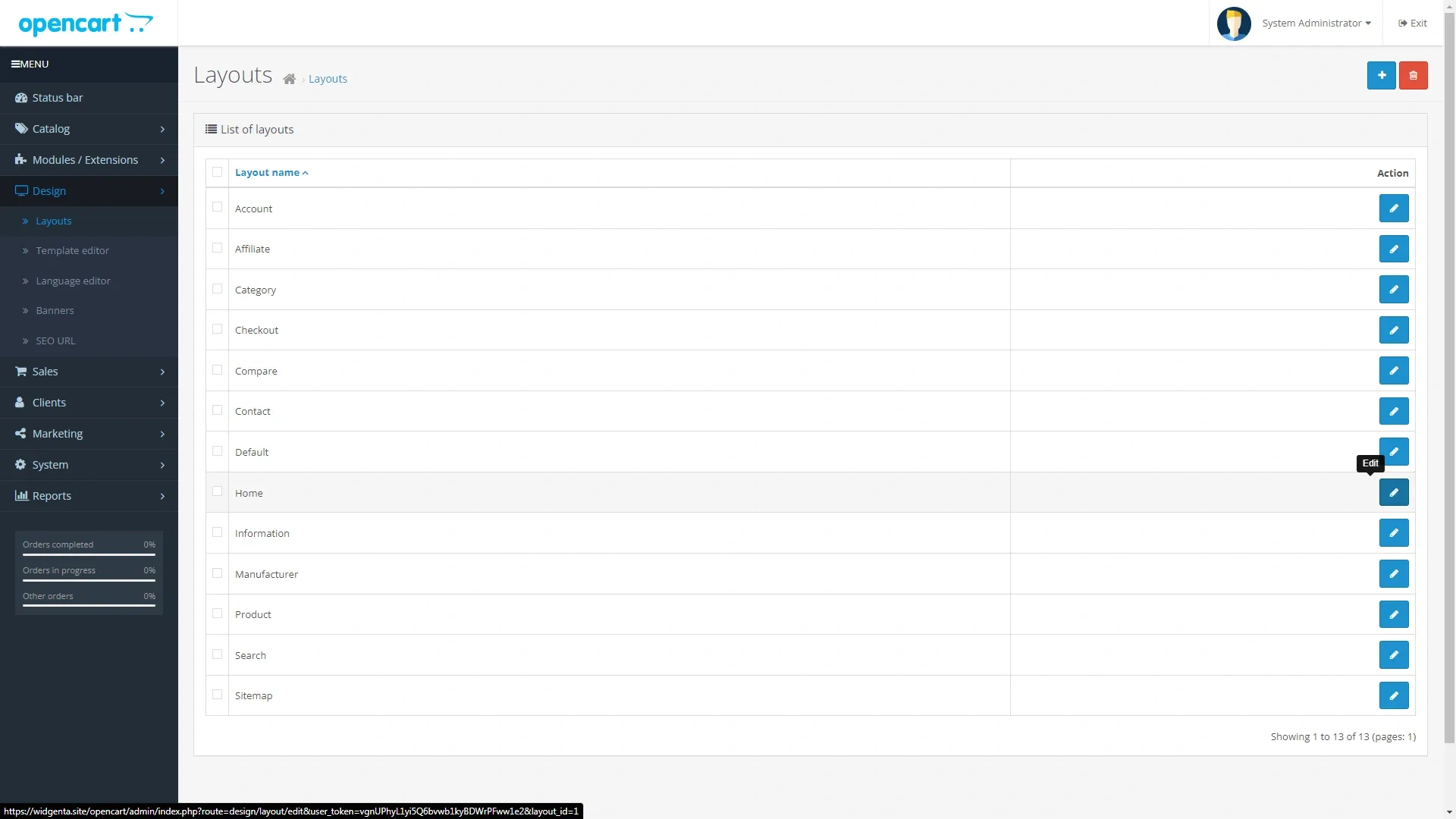
Go to «Design» > «Layouts» and edit all the layouts one by one.
Add the created module to each layout by selecting it from the list in the «Top of page» section.
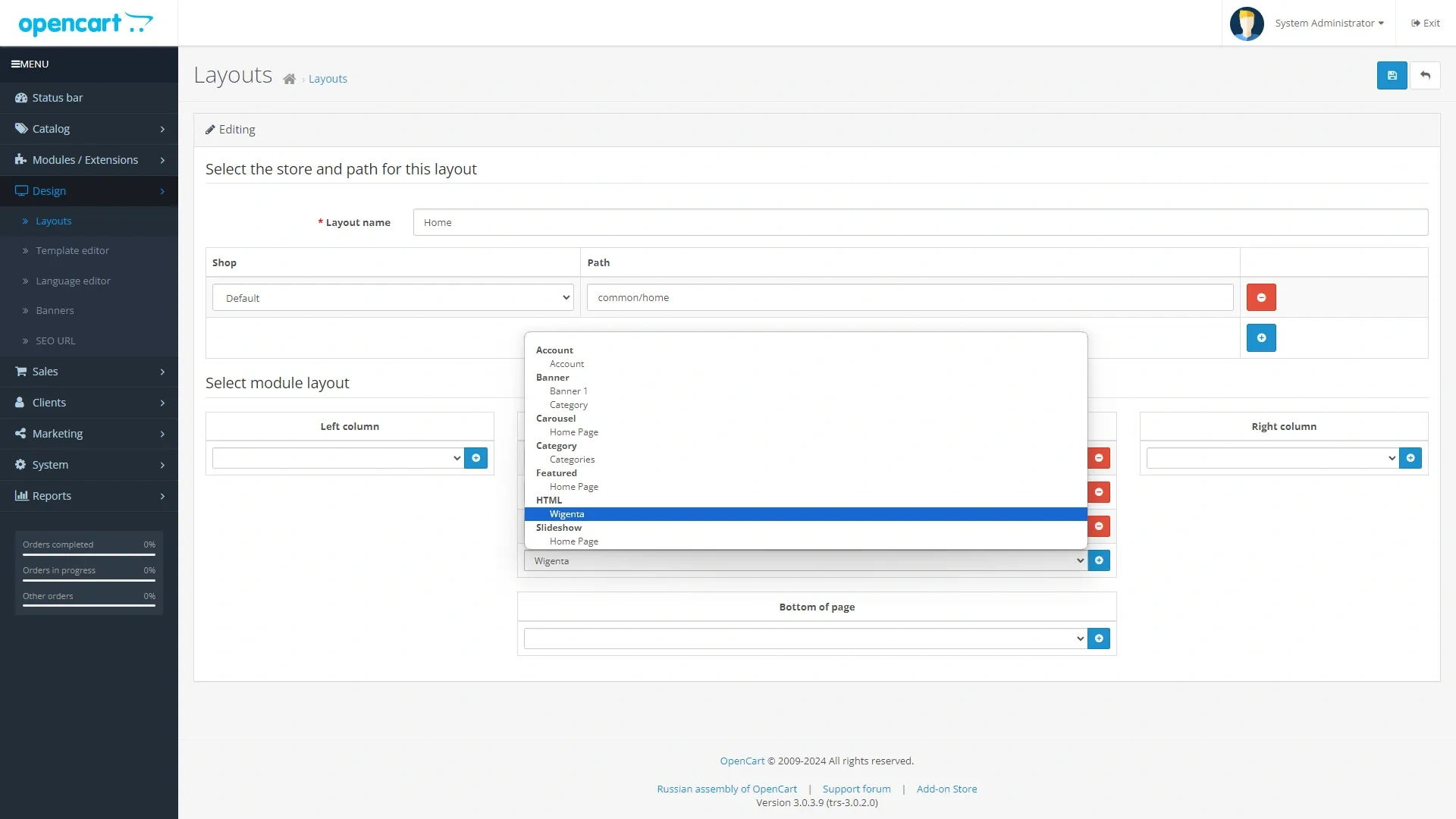
It is necessary to add the «Widgenta» module to each layout of the site. After selecting and clicking the «+» button, save the layout.
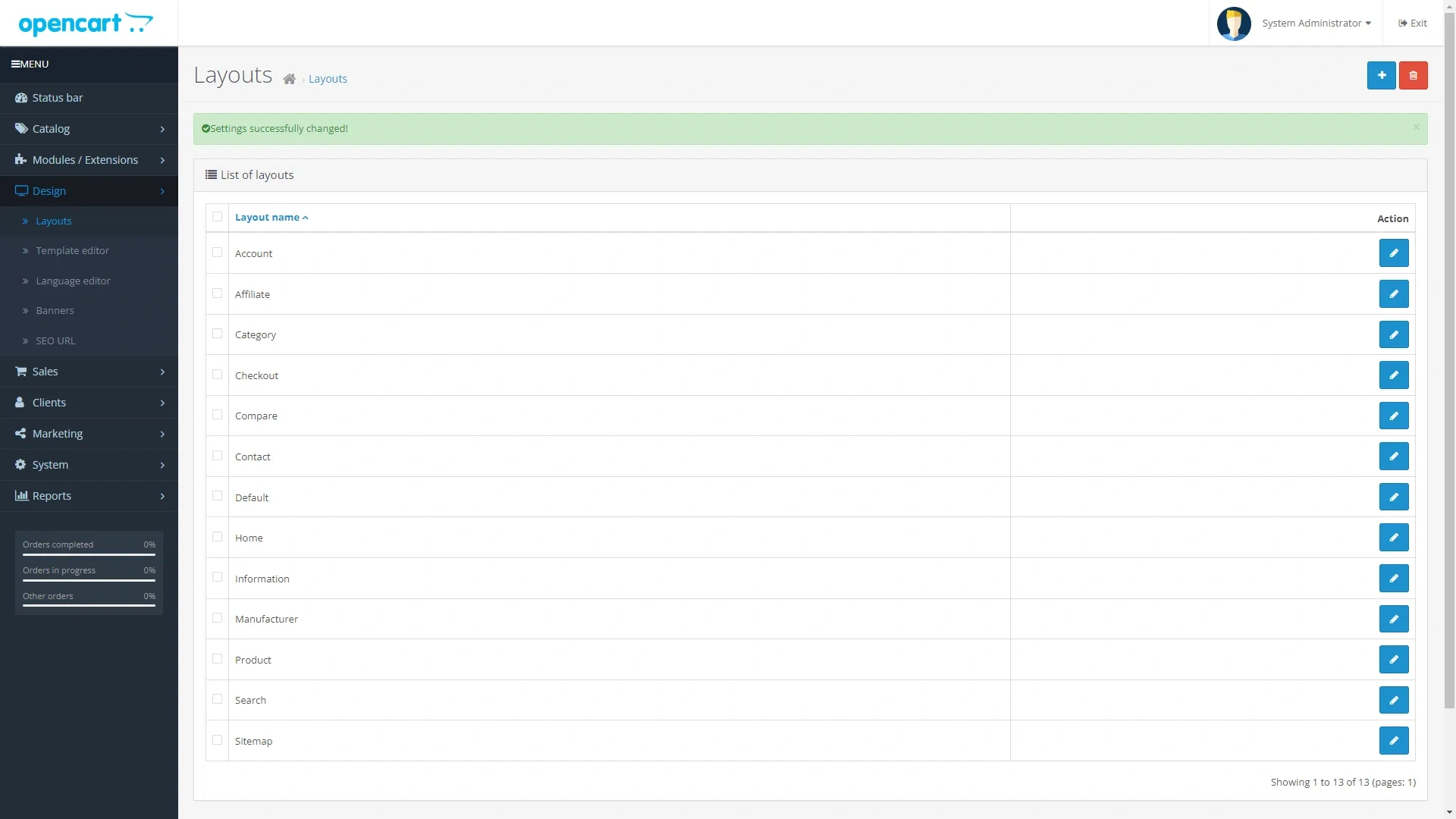
Go to the site and check for a working widget.
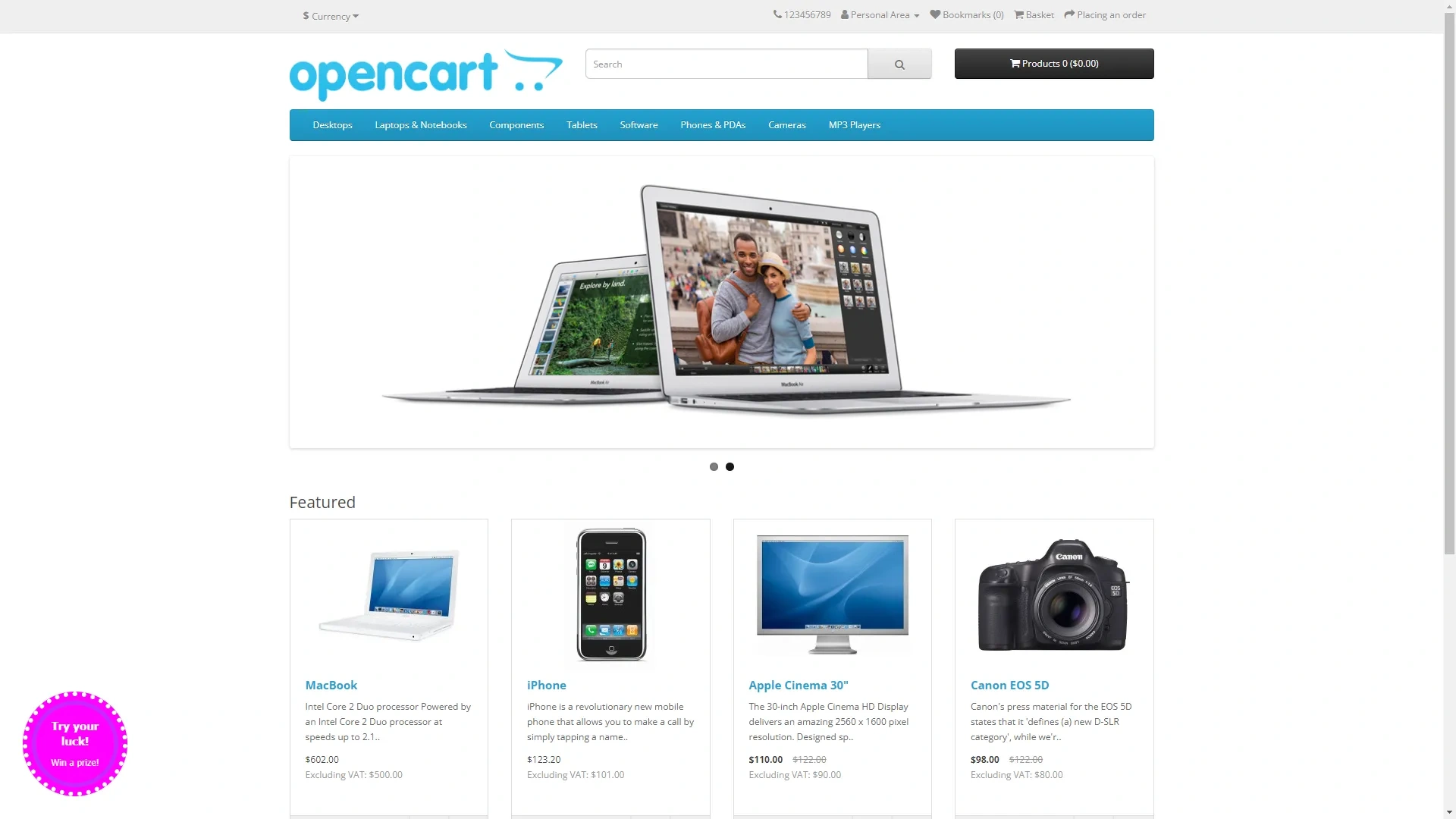
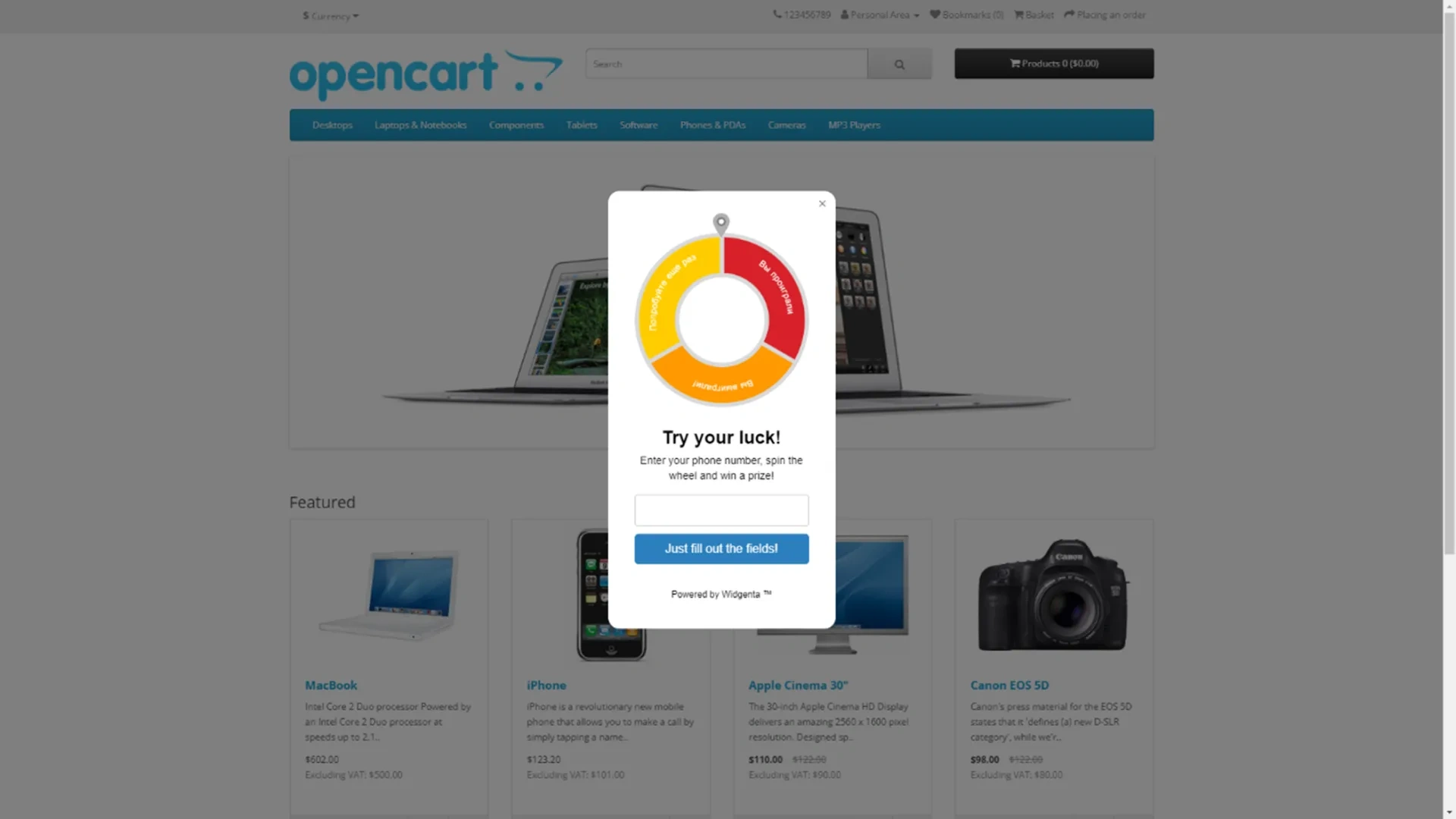
Placement of Widgenta widget on selected pages of OpenCart website (on one or more pages)
After creating, customizing and saving the widget, you have the code available for posting on your site.

Copy the first code for <head> and go to the OpenCart administration panel.
Go to the «Modules / Extensions» menu item and select the «Modules» section from the drop down list.
Activate the «Text Block – HTML» module with the «+» button.
Enter edit mode by pressing the corresponding button.
The page for creating a new text module opens.
Enter the name of the module «Widgenta», select the status «Included» and in the «Text» window go to the code editing mode by pressing the «</>» button, where we insert both parts of the code from the Widgenta widget.
Before saving the created module it is necessary to exit the code editing mode and initialize the widget by clicking on the «</>» button, only then save the module.
The created module will be displayed in the list of available modules.
Go to «Design» > «Layouts» and edit the desired page layout, select the «Product» page.
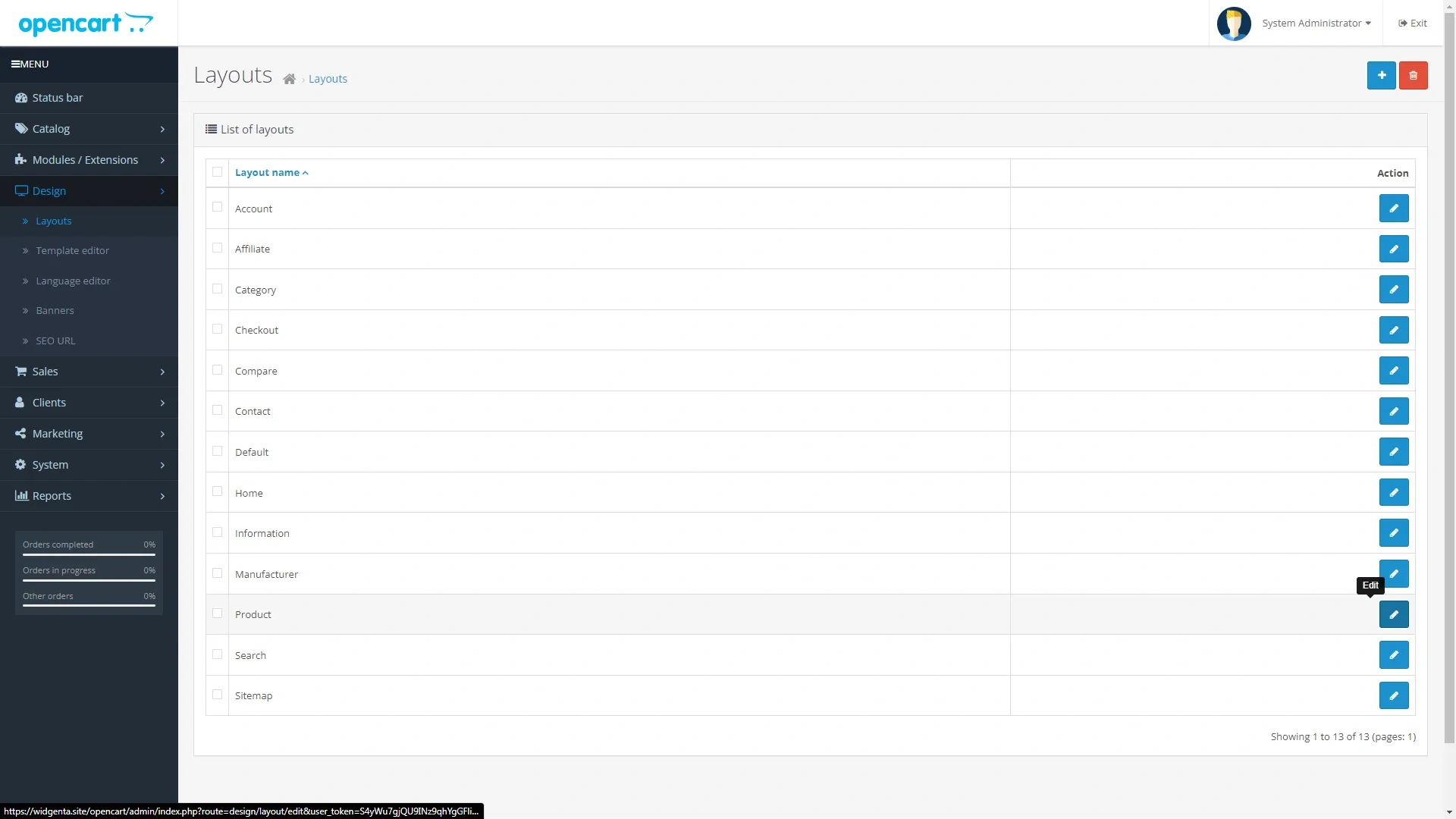
Add the created module to the layout by selecting it from the list in the «Top of page» section.
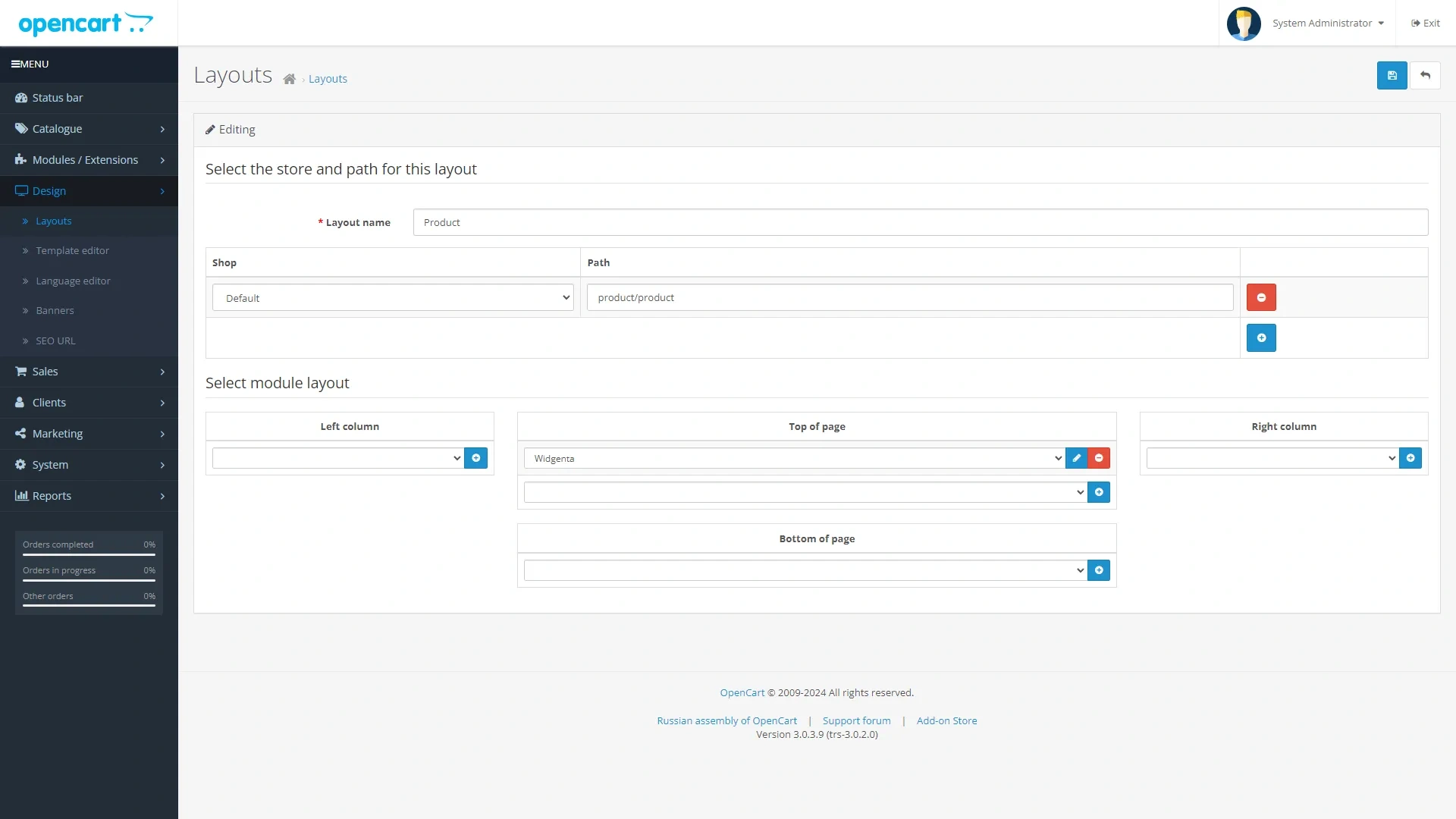
After selecting and pressing the «+» button, save the layout.
We go to the site and check that the widget is missing, since we placed it on the «Product» page.
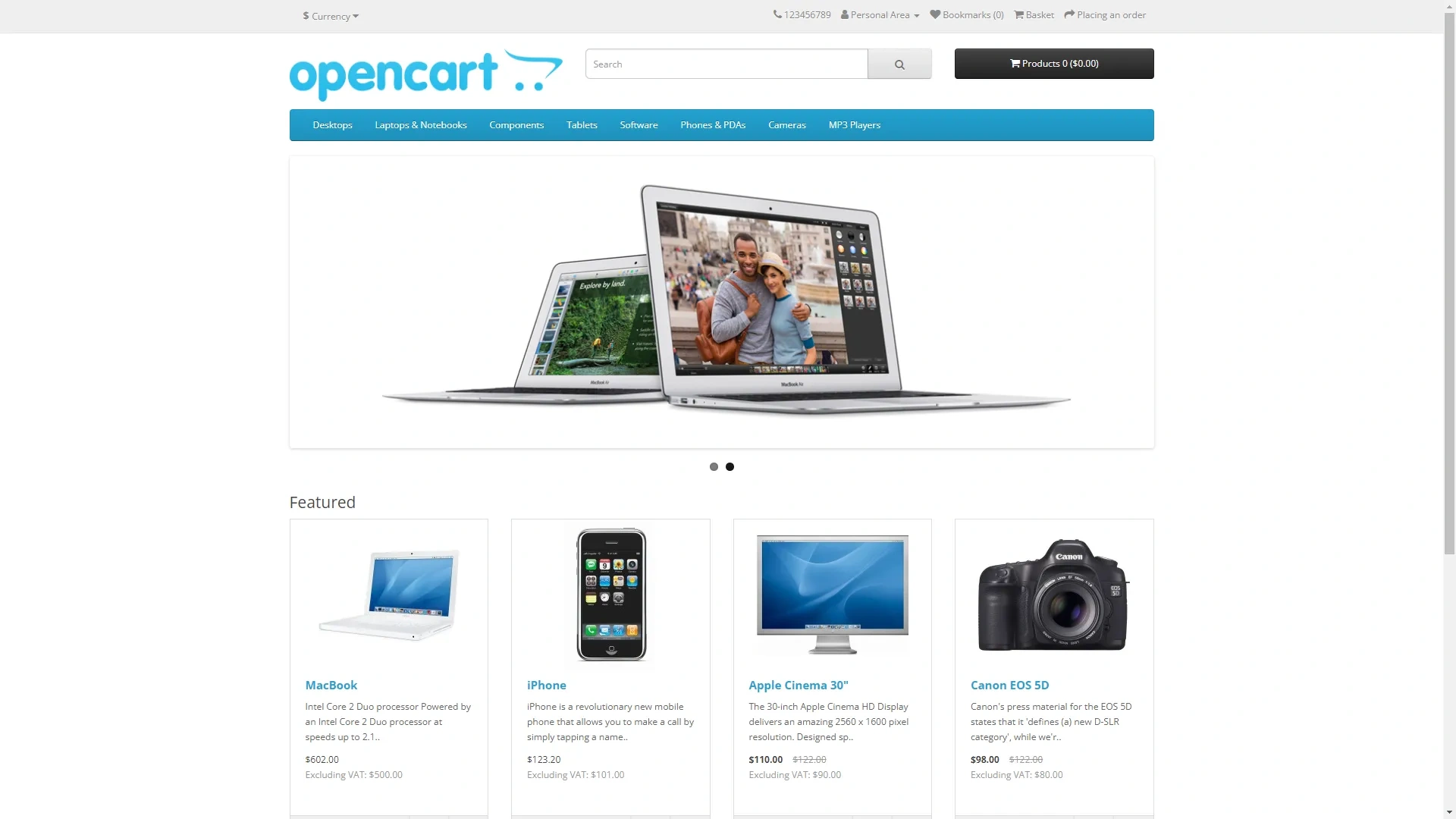
Go to the "Product" page and you will be able to see the widget you have placed.