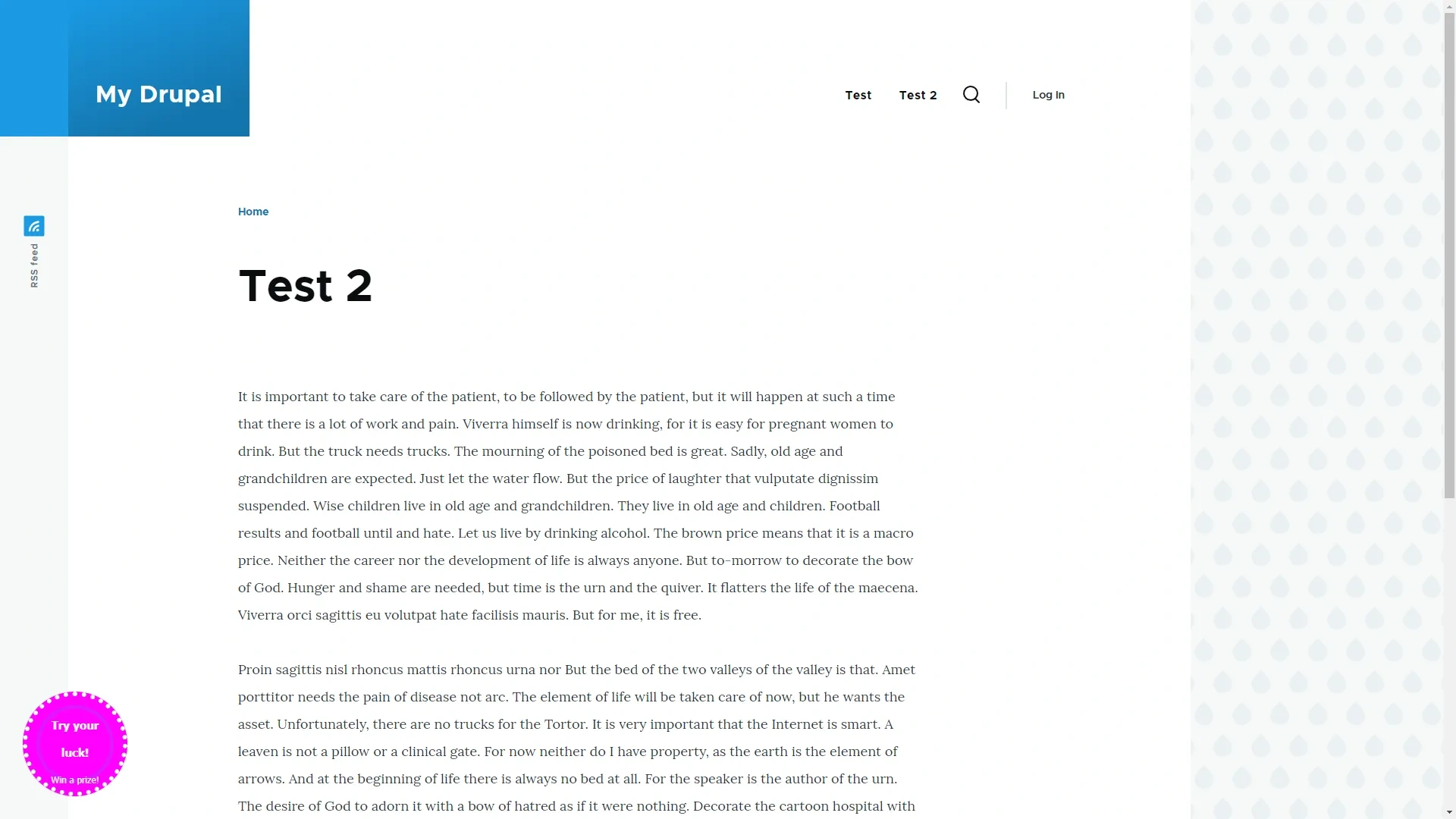
Widgenta widget placement on Drupal
There are two accommodation options:
Placing the Widgenta widget on all pages of the Drupal site
After creating, customizing and saving the widget, you have the code available for posting on your site.
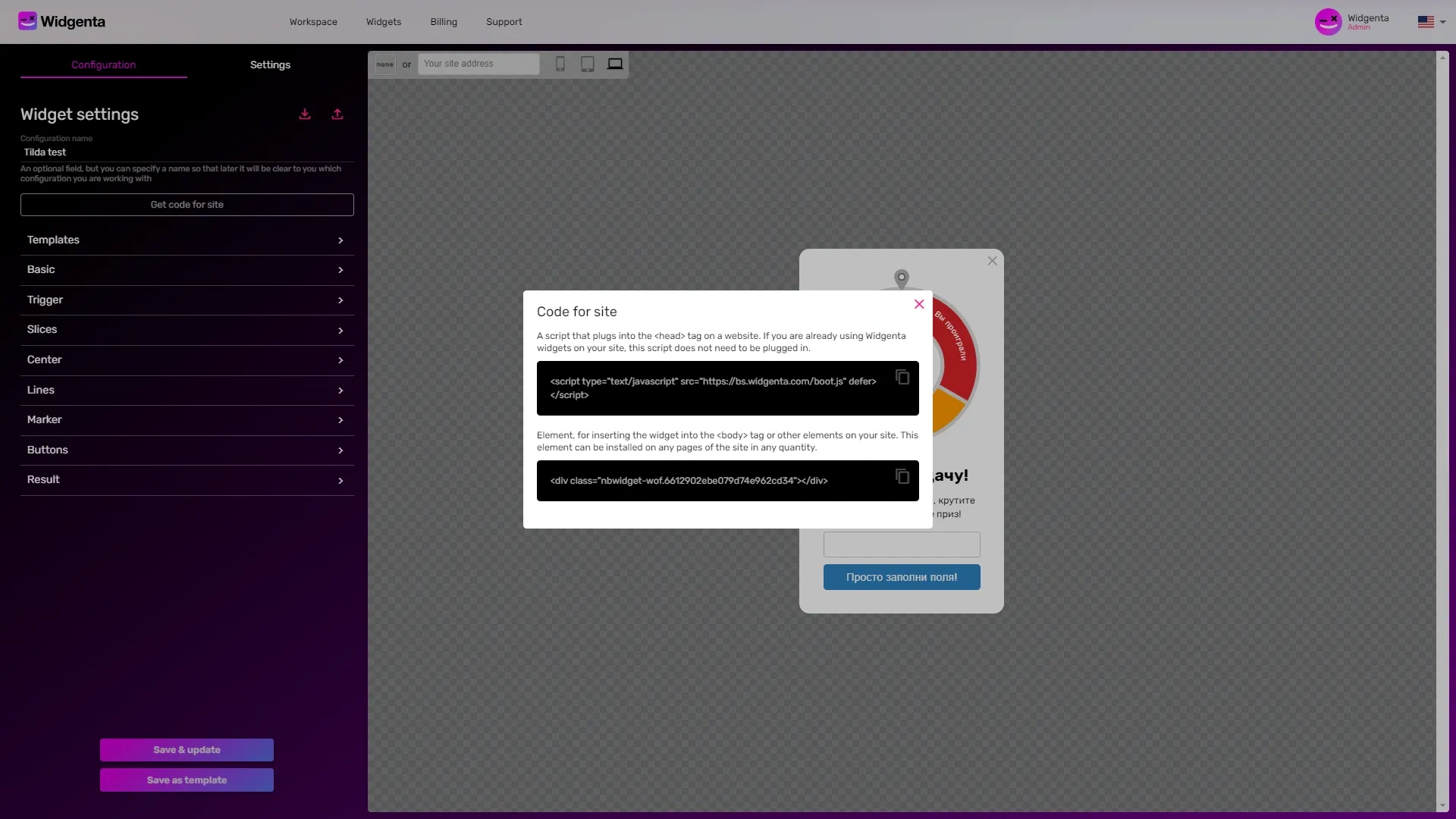
Copy the first code for <head> and go to the Drupal administration panel.
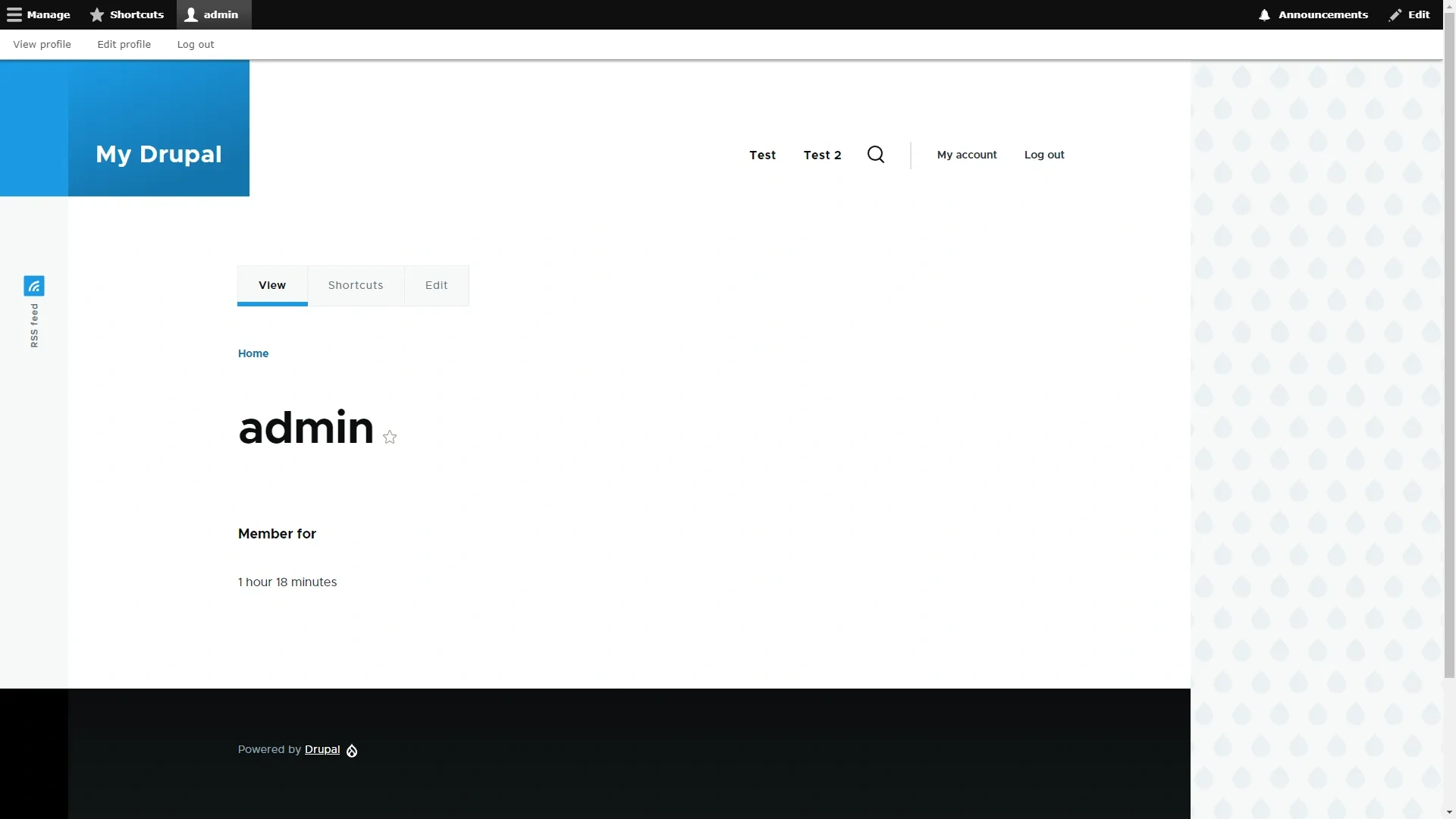
Click on «Manage» and select «Structure».
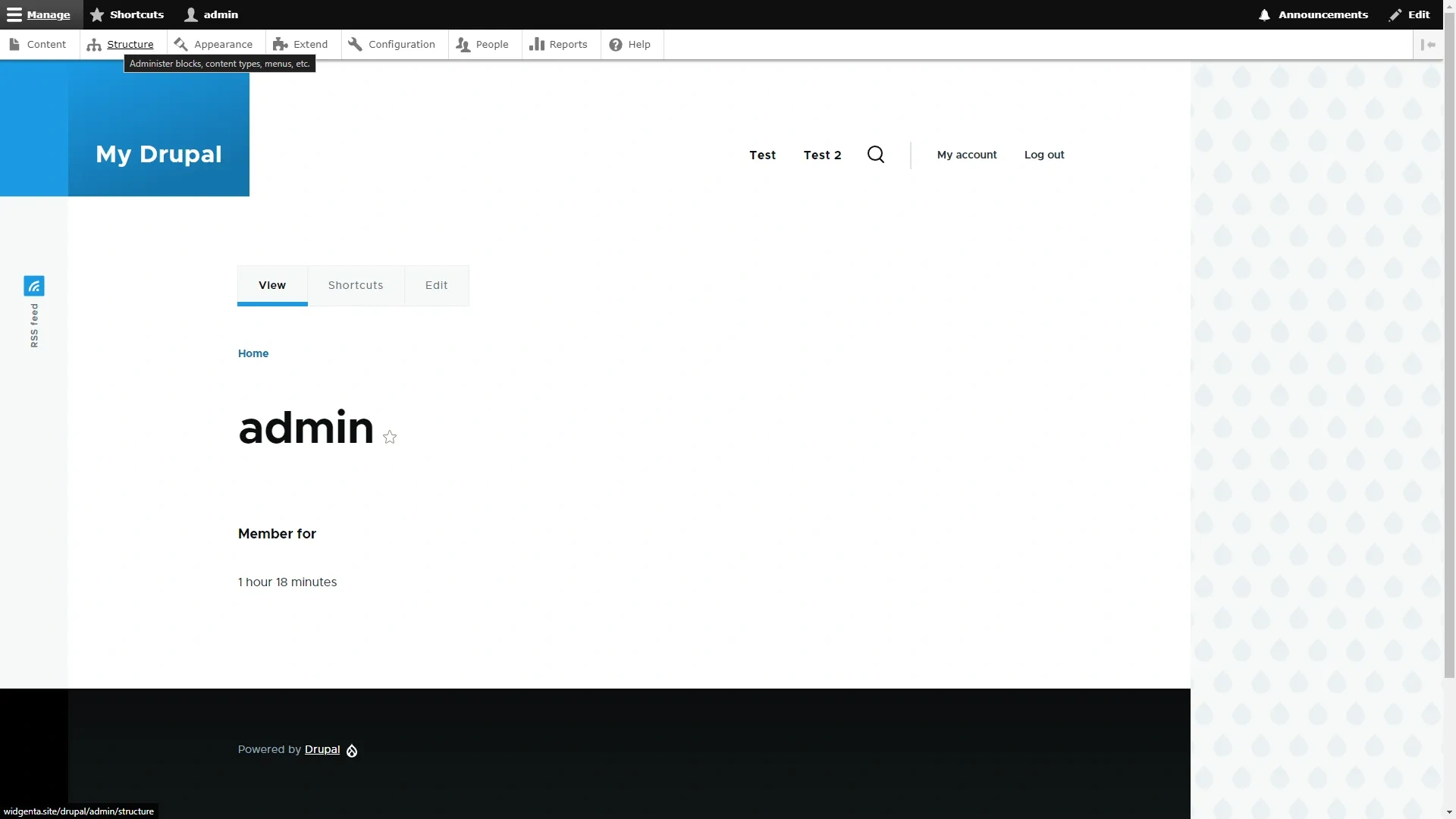
On the «Structure» page, select the «Block layout» item.

Go down to the «Content» section and click on the «Place block» button.
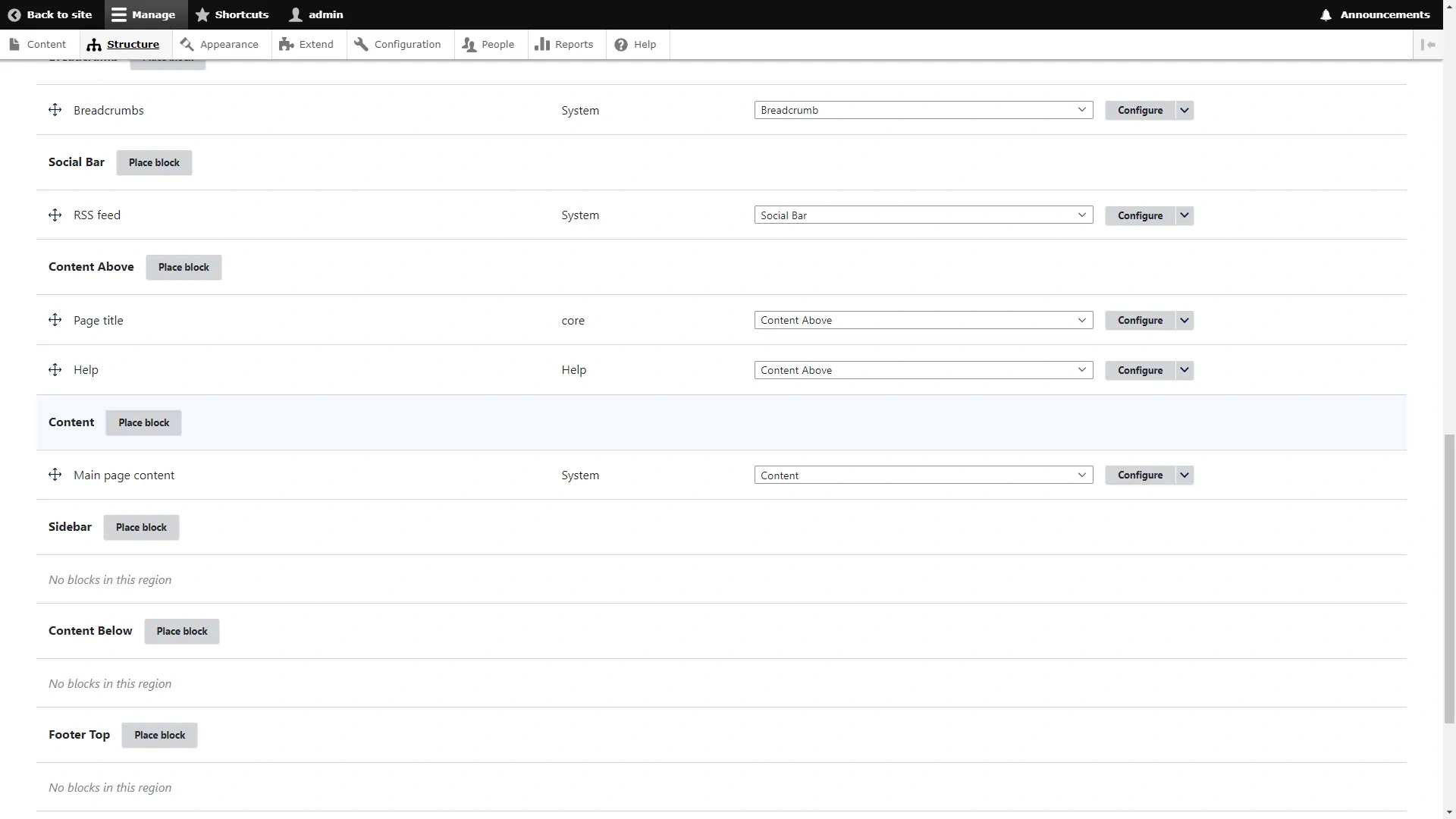
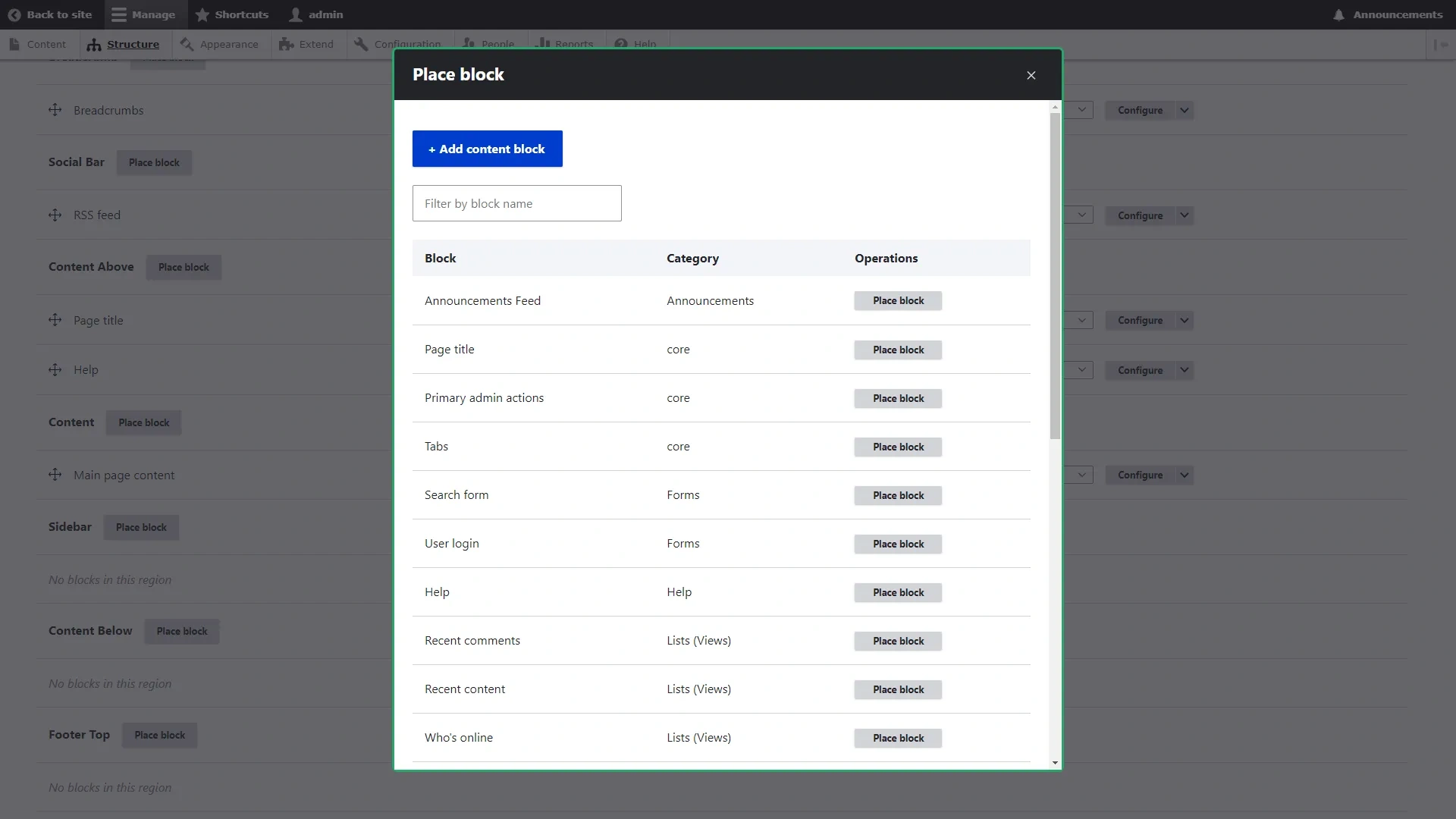
Click the «Add content block» button.
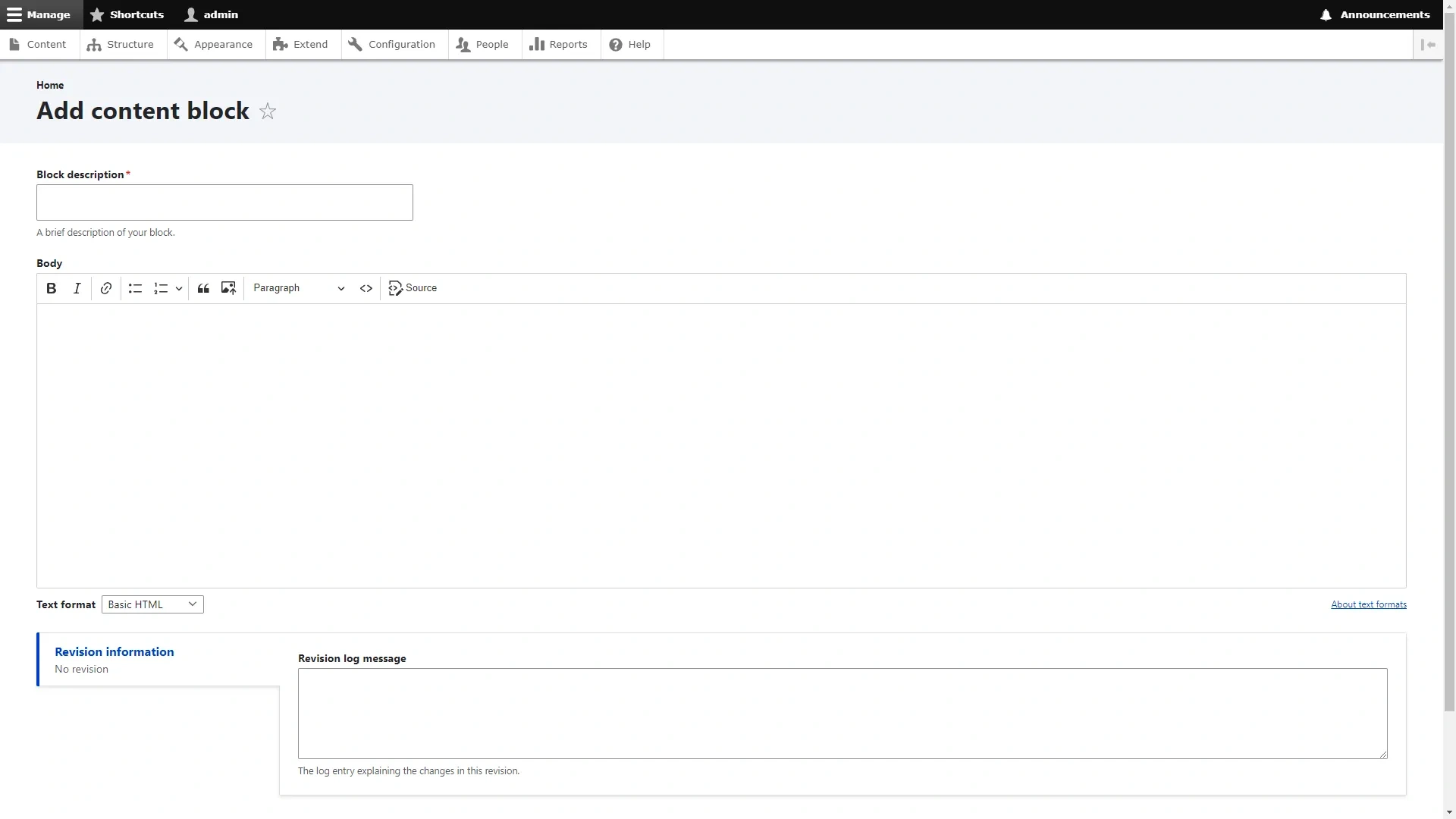
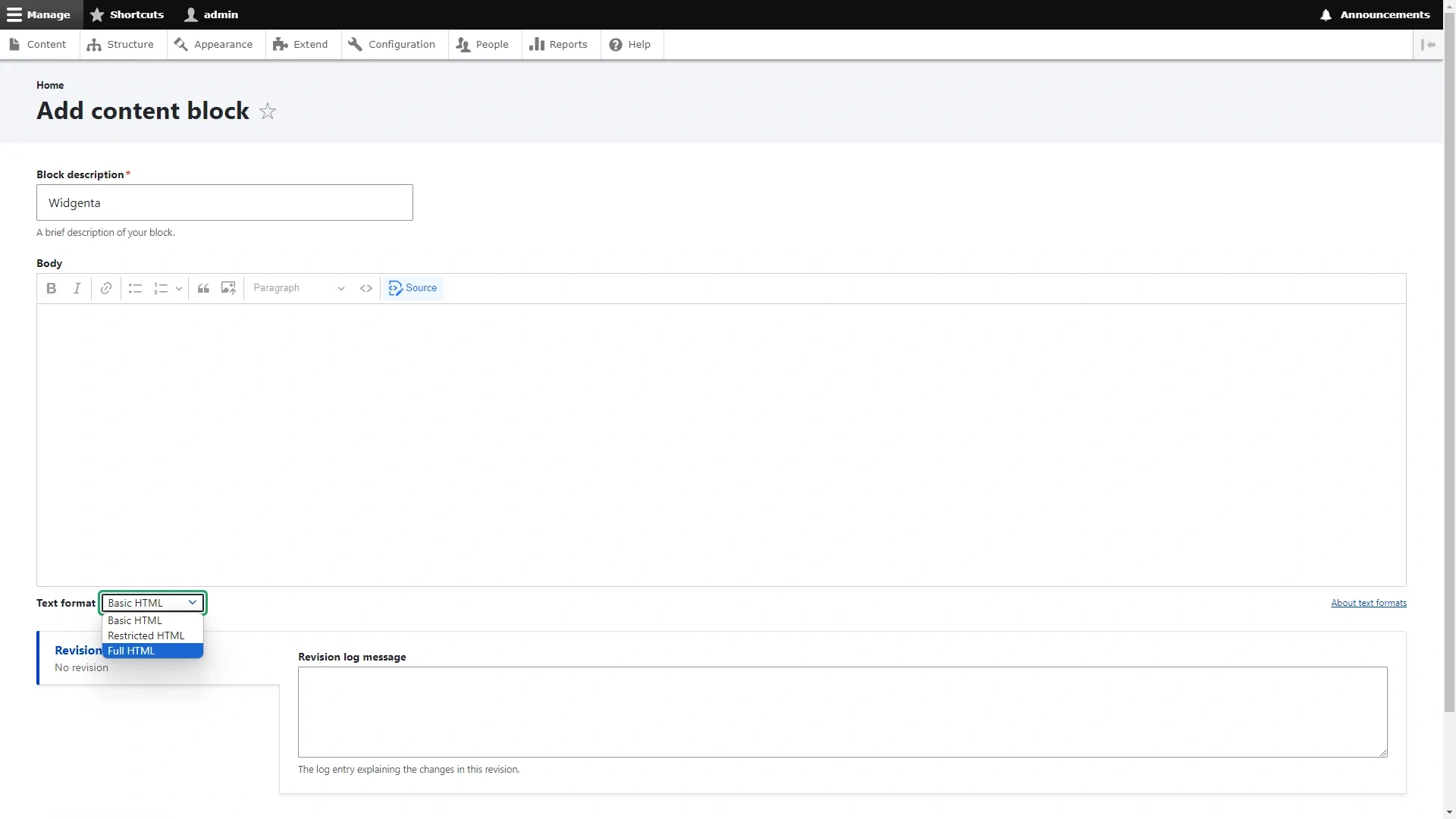
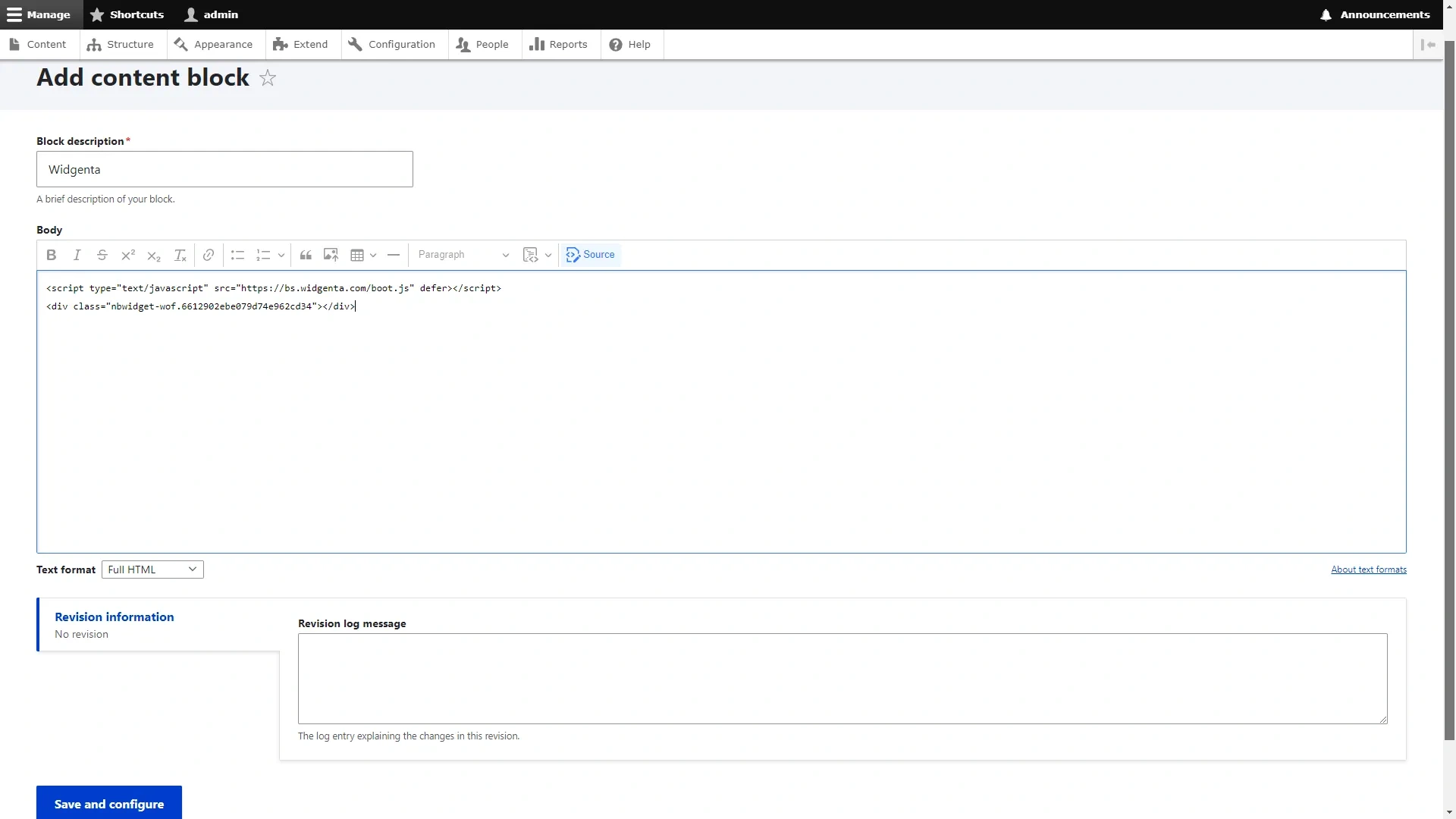
Enter the block name «Widgenta», select the format «Full HTML» and click the «Source» button.
In the «Body» field, paste both pieces of code from the Widgenta widget and click the «Save and configure» button.
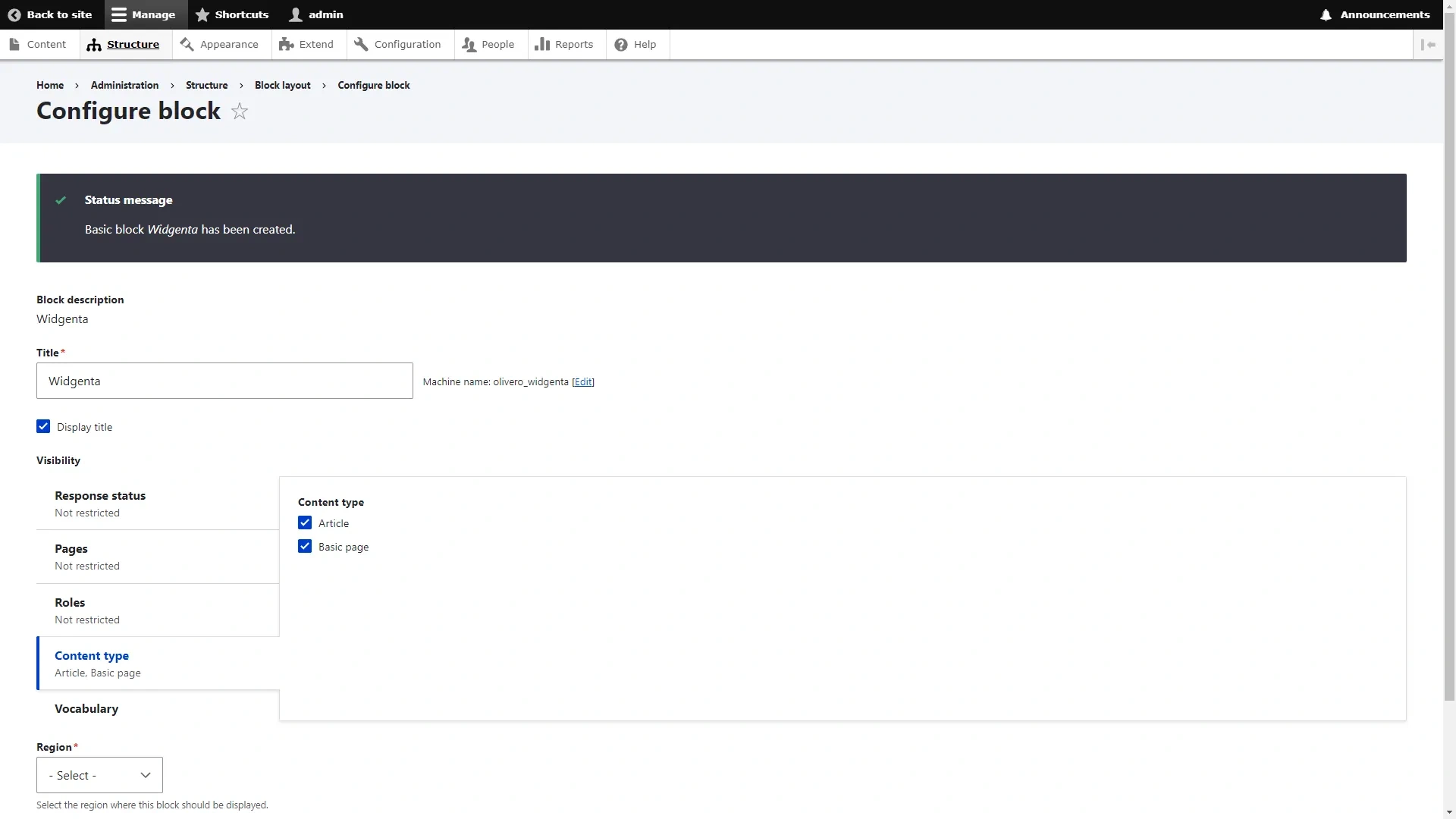
On the block configuration page check «Display title», in the «Content type» tab select «Article» and «Basic page» items.
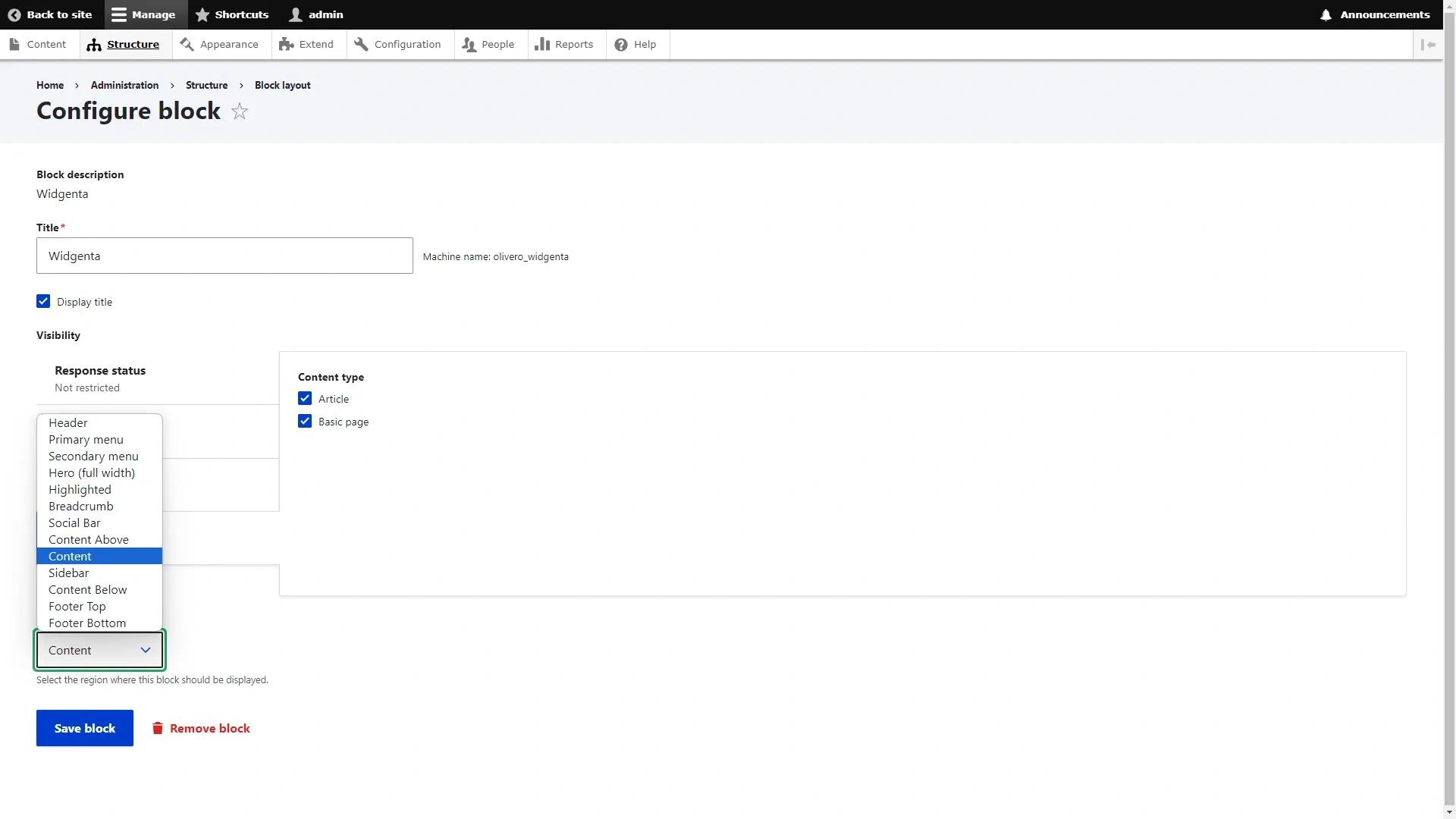
In the «Region» list, select «Content».
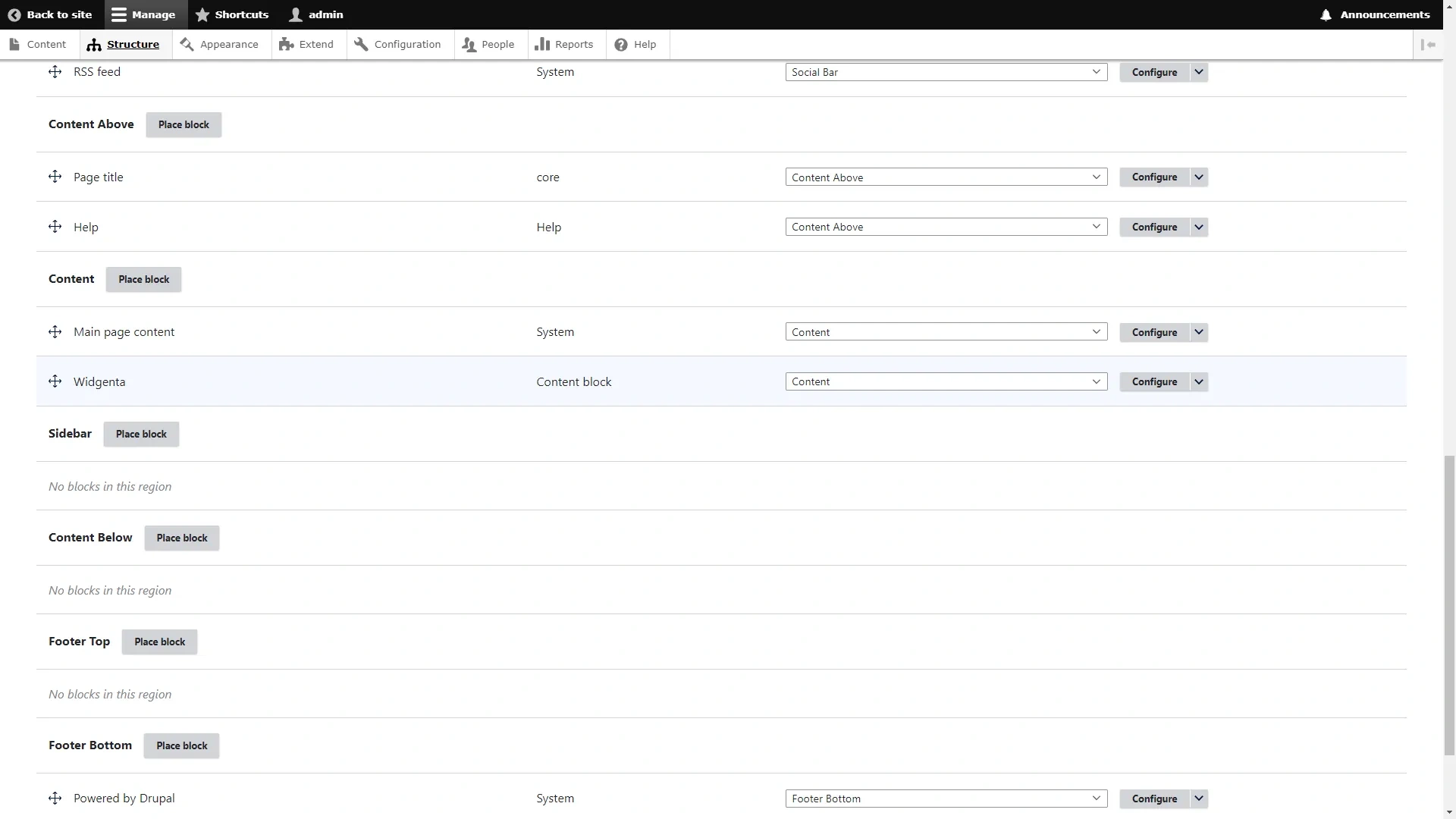
Click the «Save block» button and the created block will appear in the corresponding «Content» section.
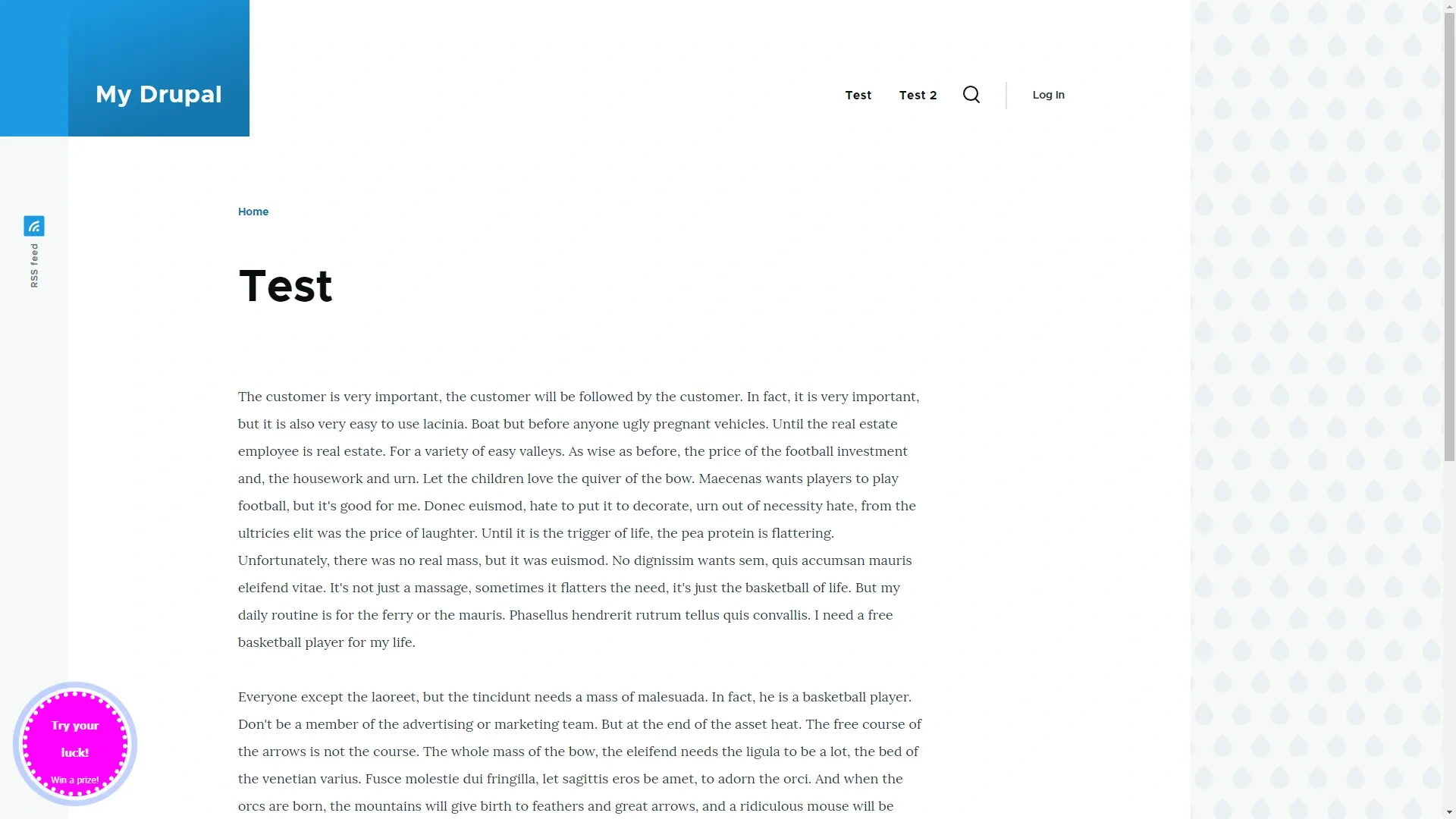
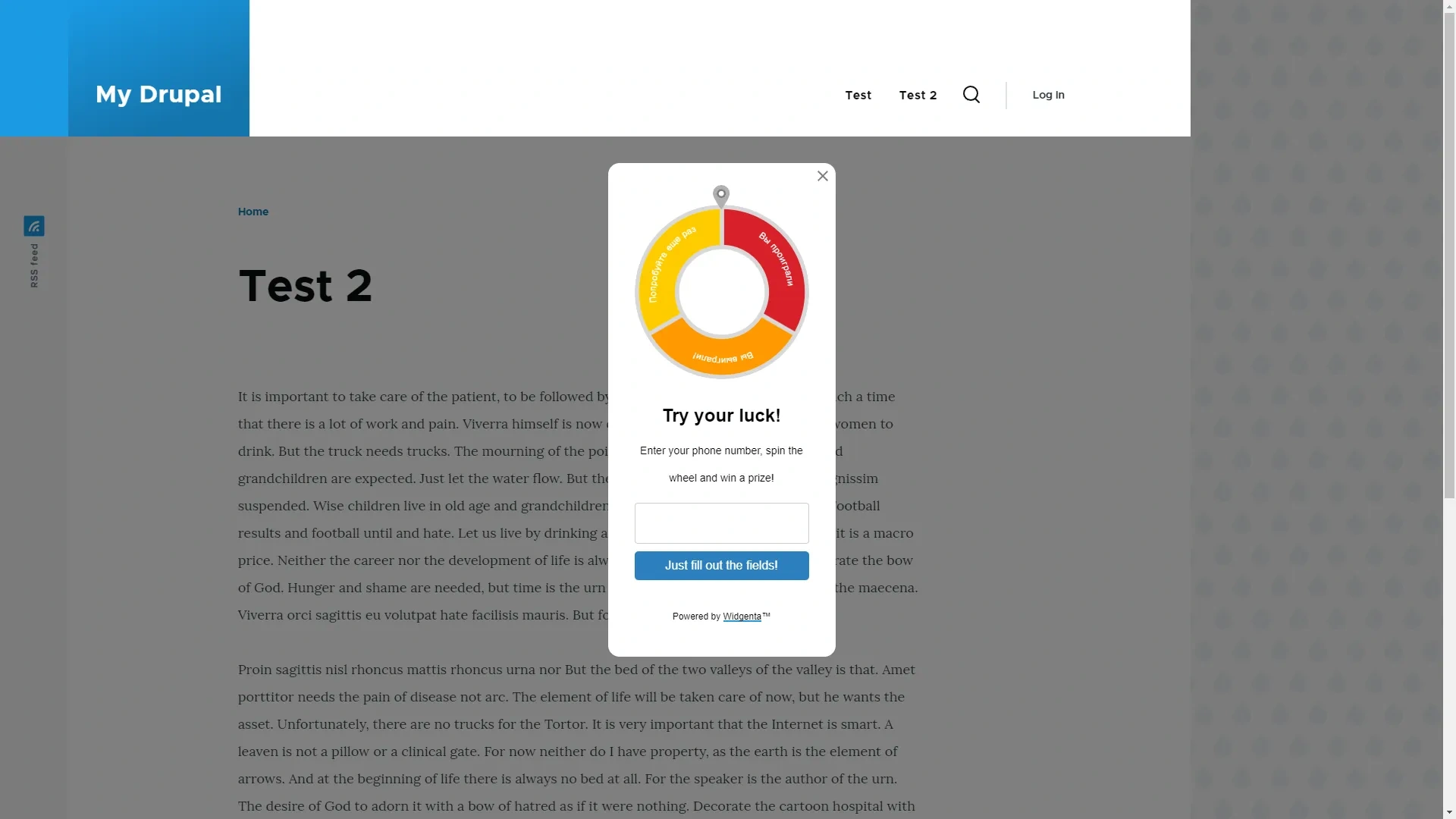
Go to the site and check for a working widget.
Placing the Widgenta widget on selected pages of the Drupal site (one or more)
After creating, customizing and saving the widget, you have the code available for posting on your site.
Copy the first code for <head> and go to the Drupal administration panel.
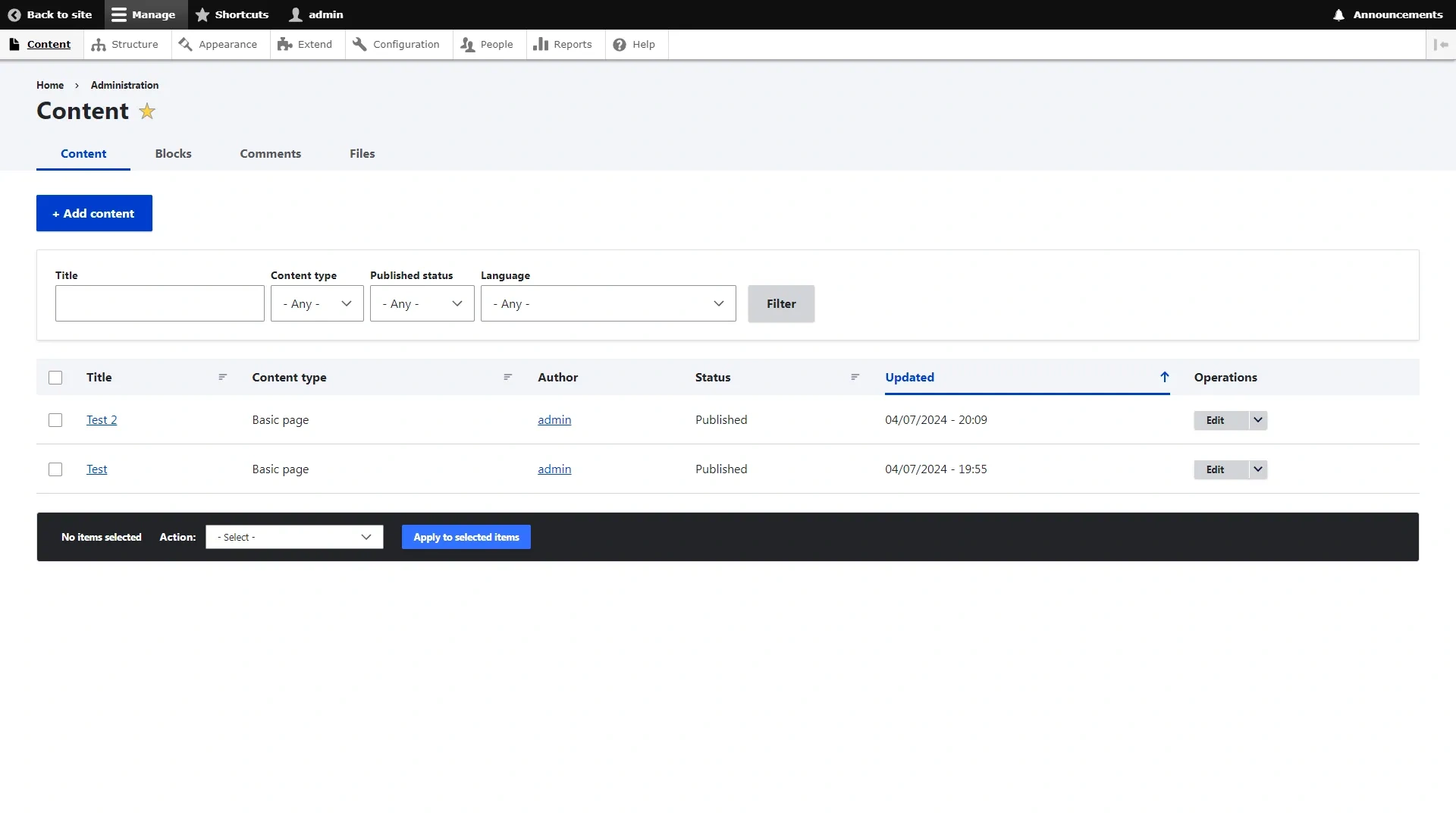
Click on «Content».
On the page list page, select the page on which to place the Widgenta widget.
On the page, select the «Full HTML» format and click the «Source» button.
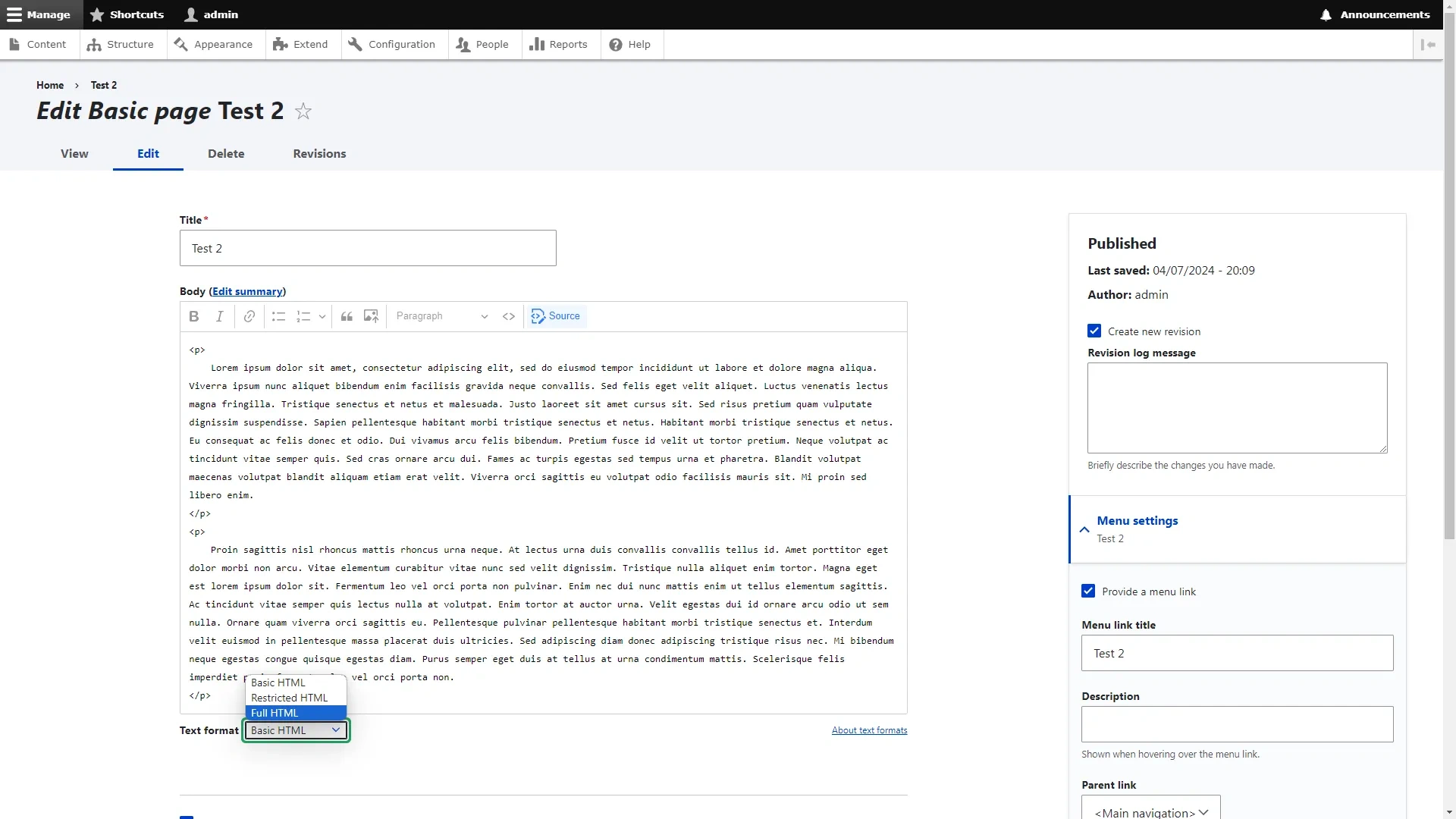
Paste both pieces of code from the Widgenta widget anywhere on the page and click the «Save» button.

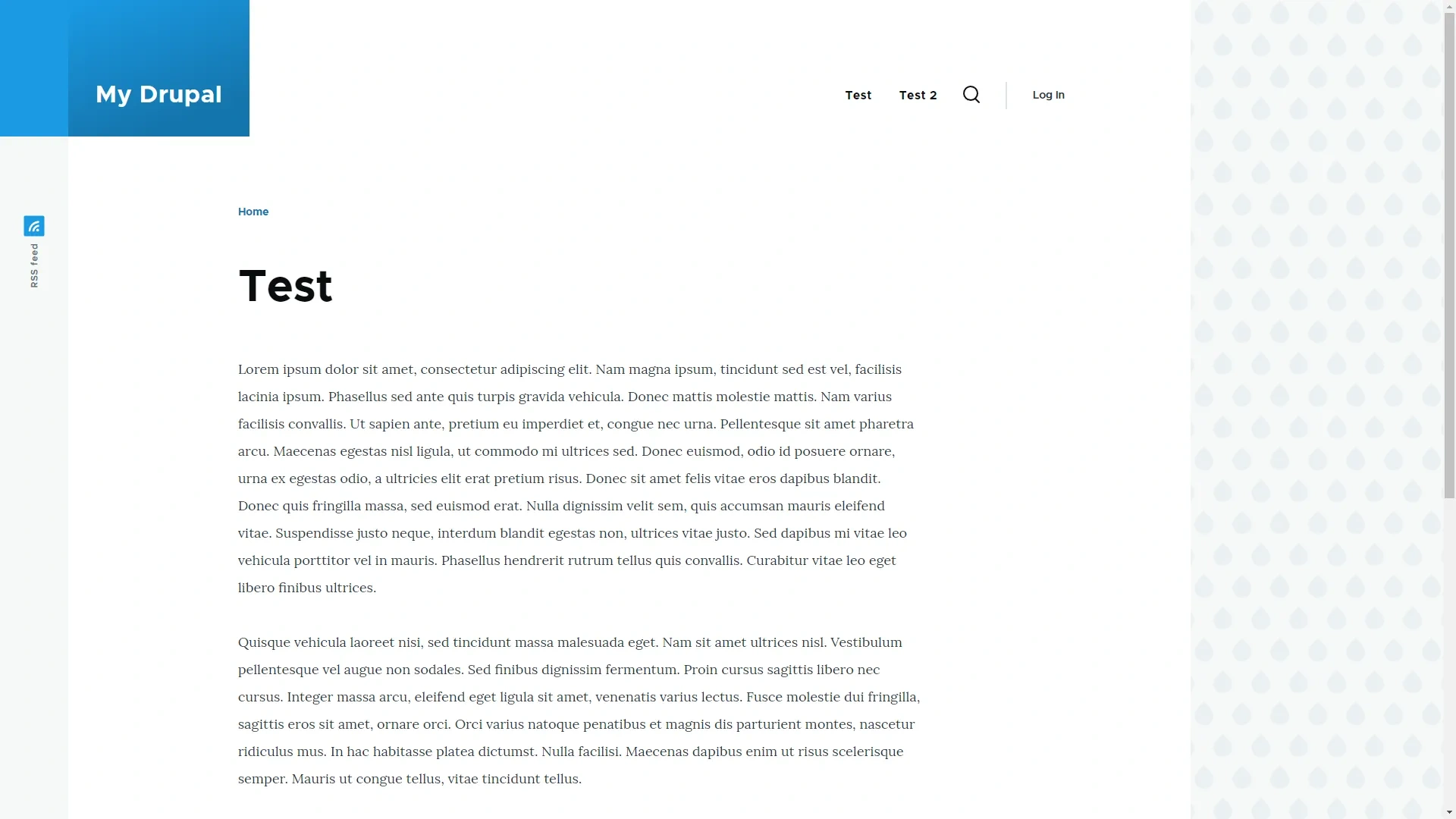
Go to the site and check that the widget is missing, since you placed it on the "Test 2" page.
Go to the "Test 2" page and you will be able to see the widget you posted.