
Widgenta widget placement on CS-Cart
There are two accommodation options:
Placement of Widgenta widget on all pages of CS-Cart site
After creating, customizing and saving the widget, you have the code available for posting on your site.
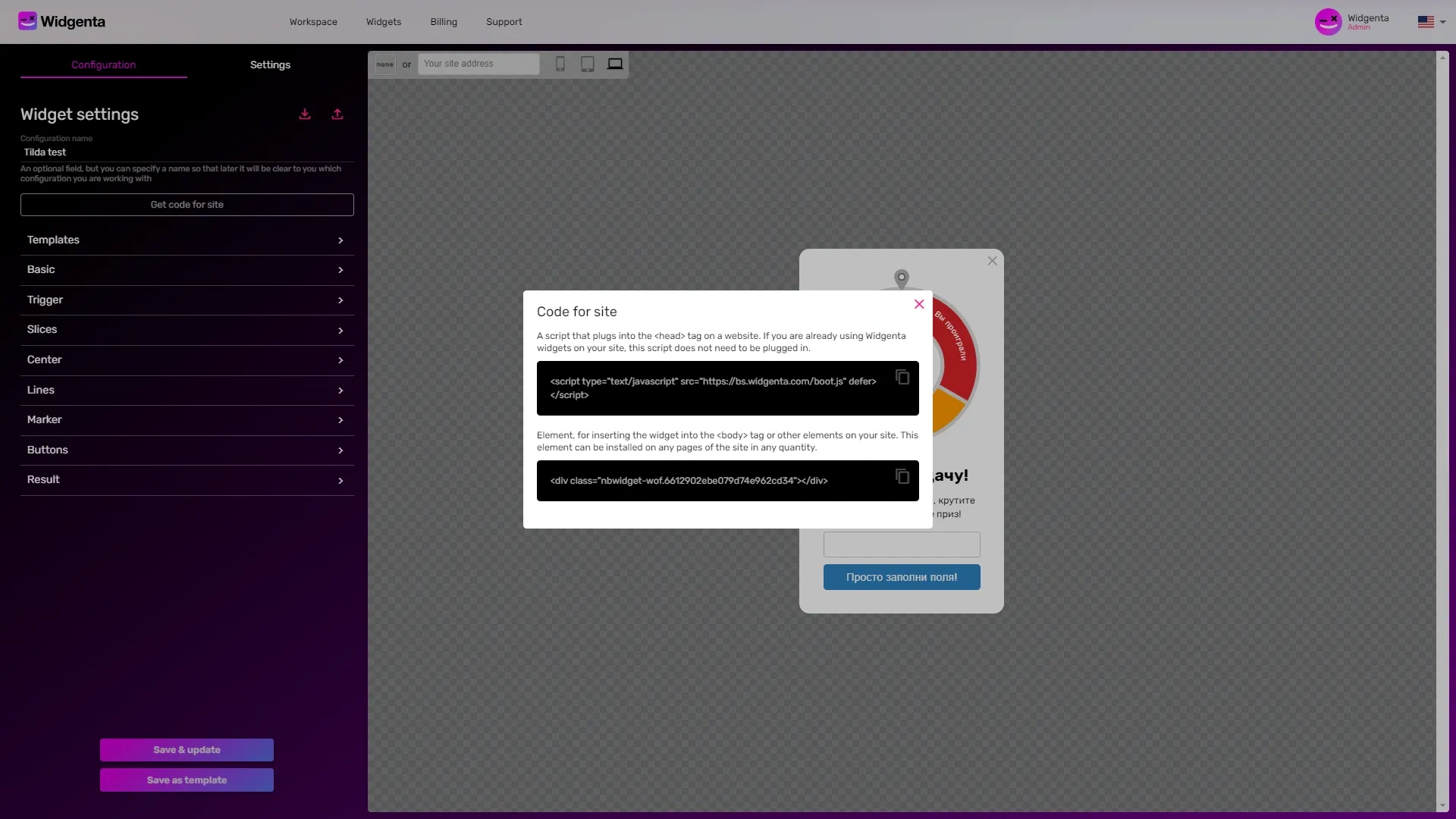
Copy the first code for «head» and go to the administrative panel of CS-Cart
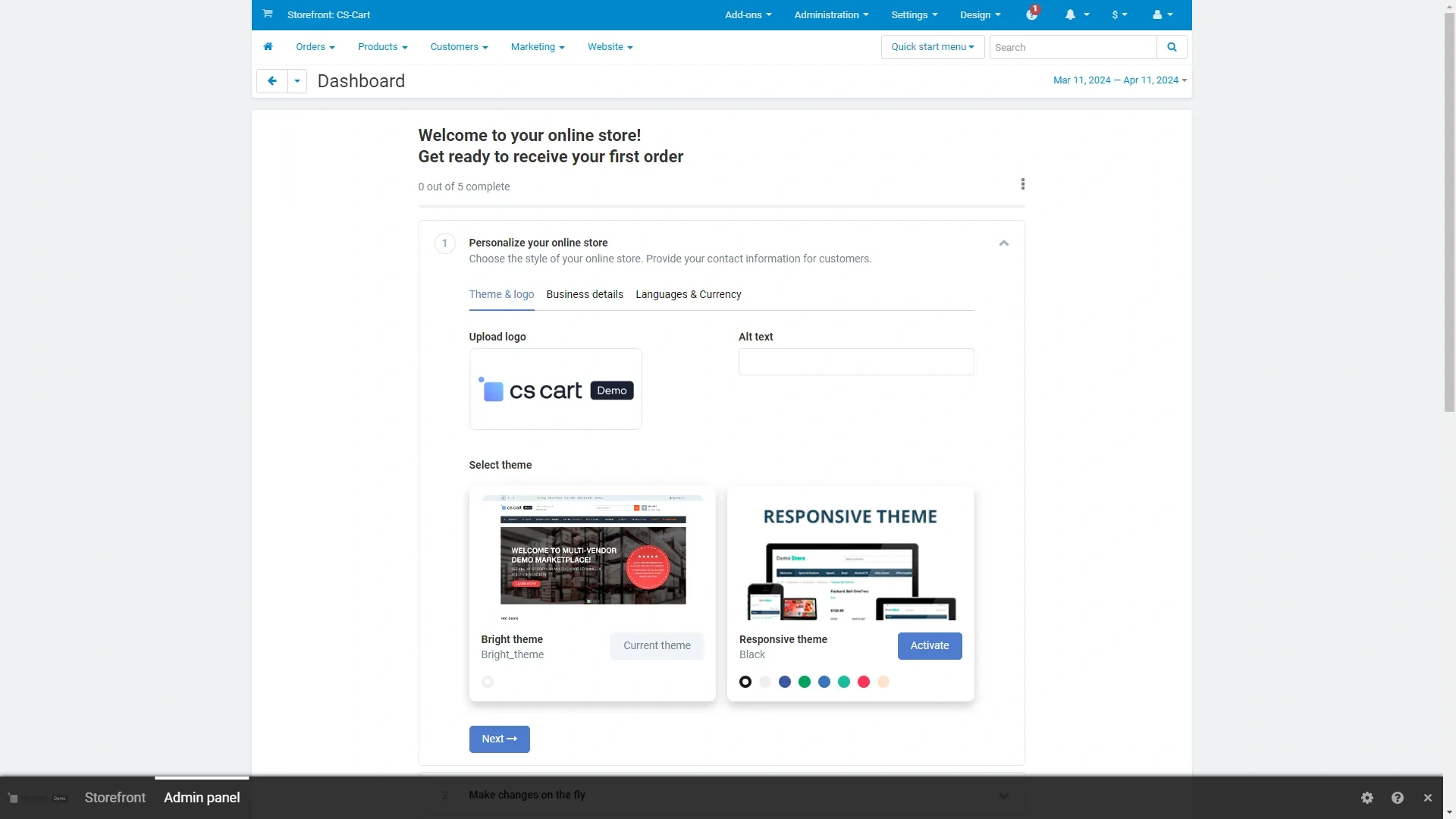
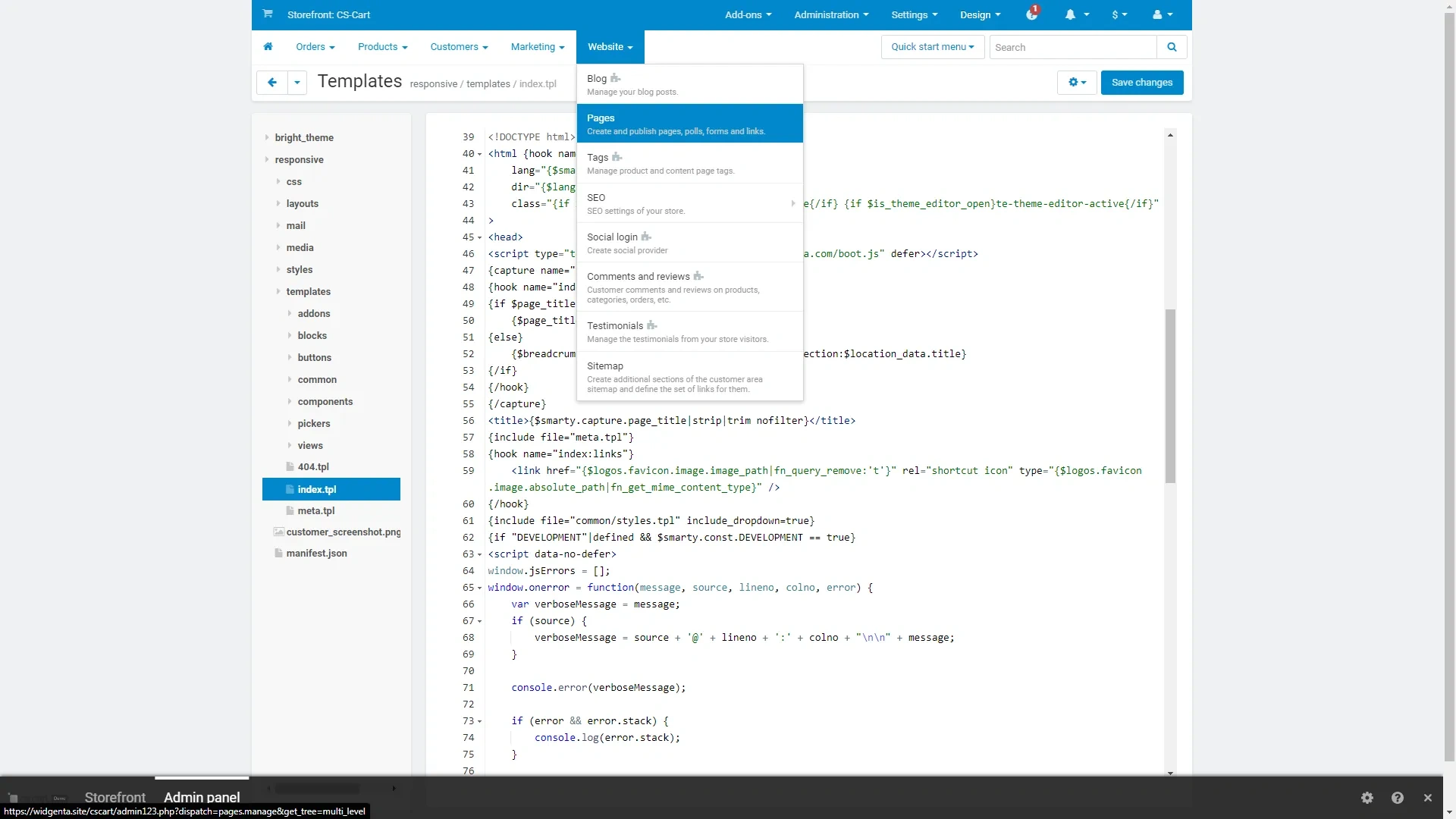
Click on «Design» and select «Templates»
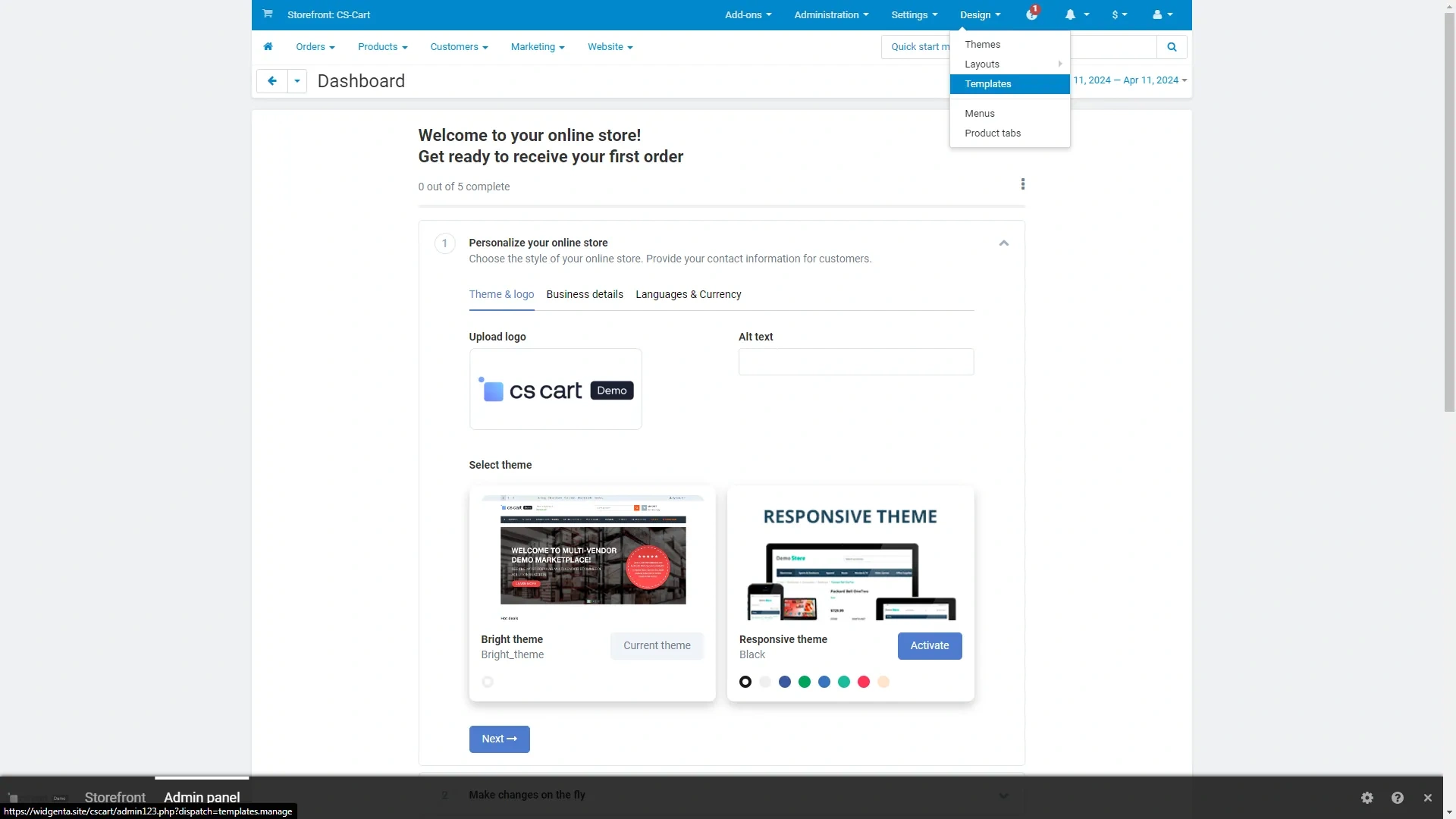
On the page «Templates» in the left side select your template, go to the folder «Templates» and in it select the file «Index.tpl».
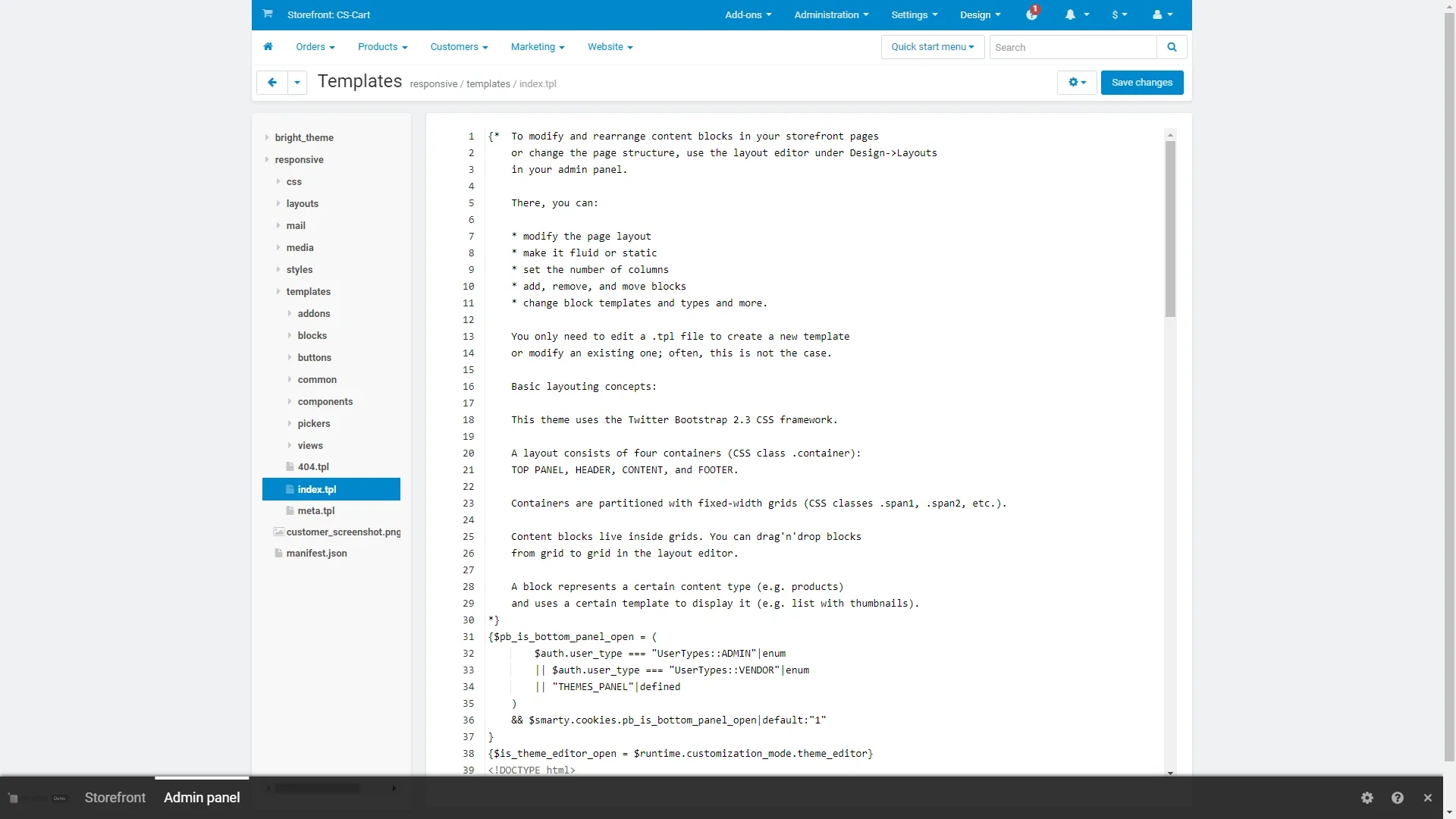
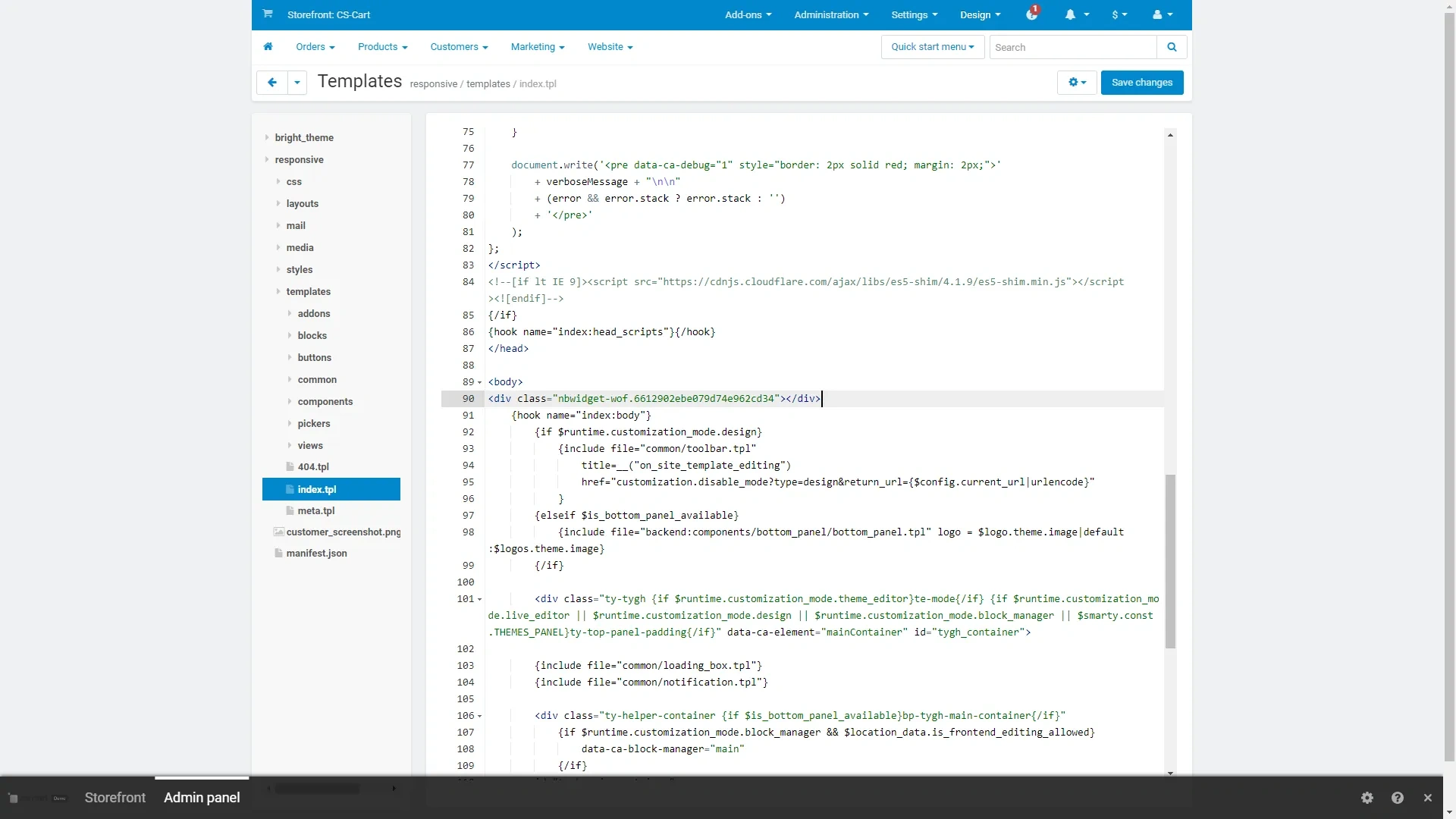
Go down to the <head> tag below and paste the first Widgenta code right after it.
Go down to the <body> tag and paste the second code right after it and save the changes using the «Save changes» button in the upper right hand corner.
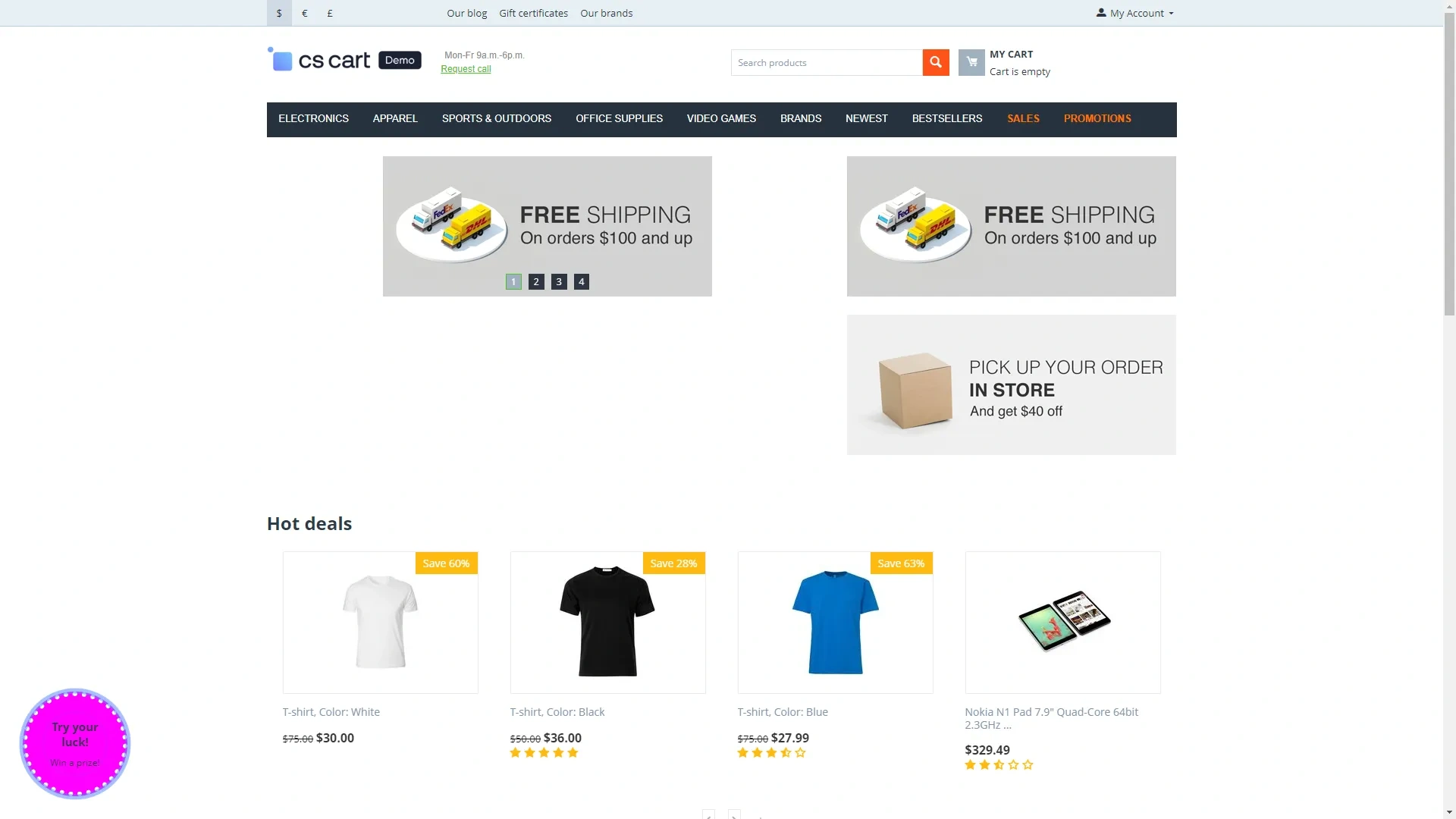
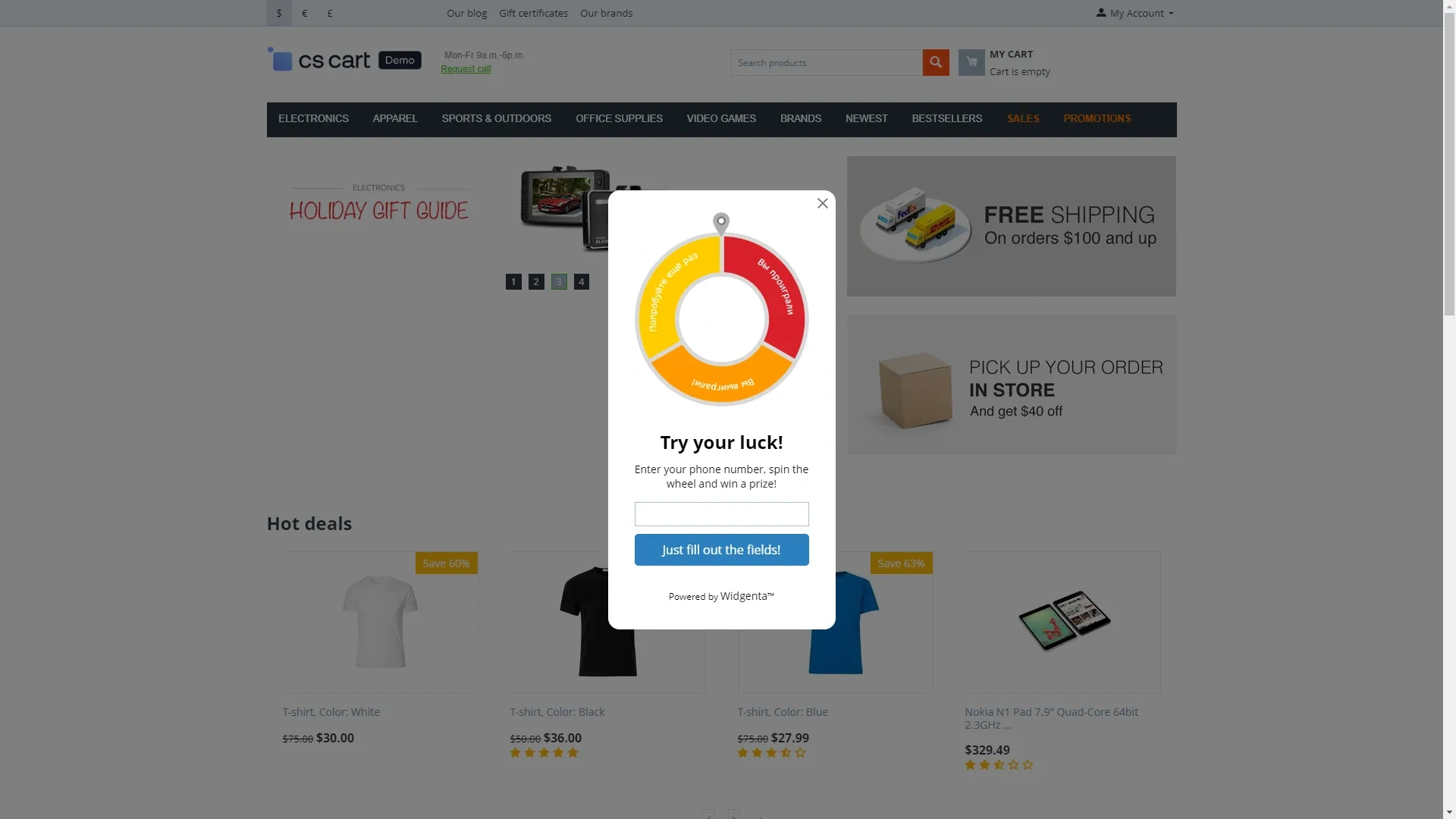
Go to the site and check for a working widget.
Placement of Widgenta widget on selected pages of CS-Cart site (on one or several pages)
After creating, customizing and saving the widget, you have the code available for posting on your site.
Copy the first code for <head> and go to the administrative panel of CS-Cart.
Click on «Design» and select «Templates».
On the page «Templates» in the left side select your template, go to the folder «Templates» and in it select the file «Index.tpl».
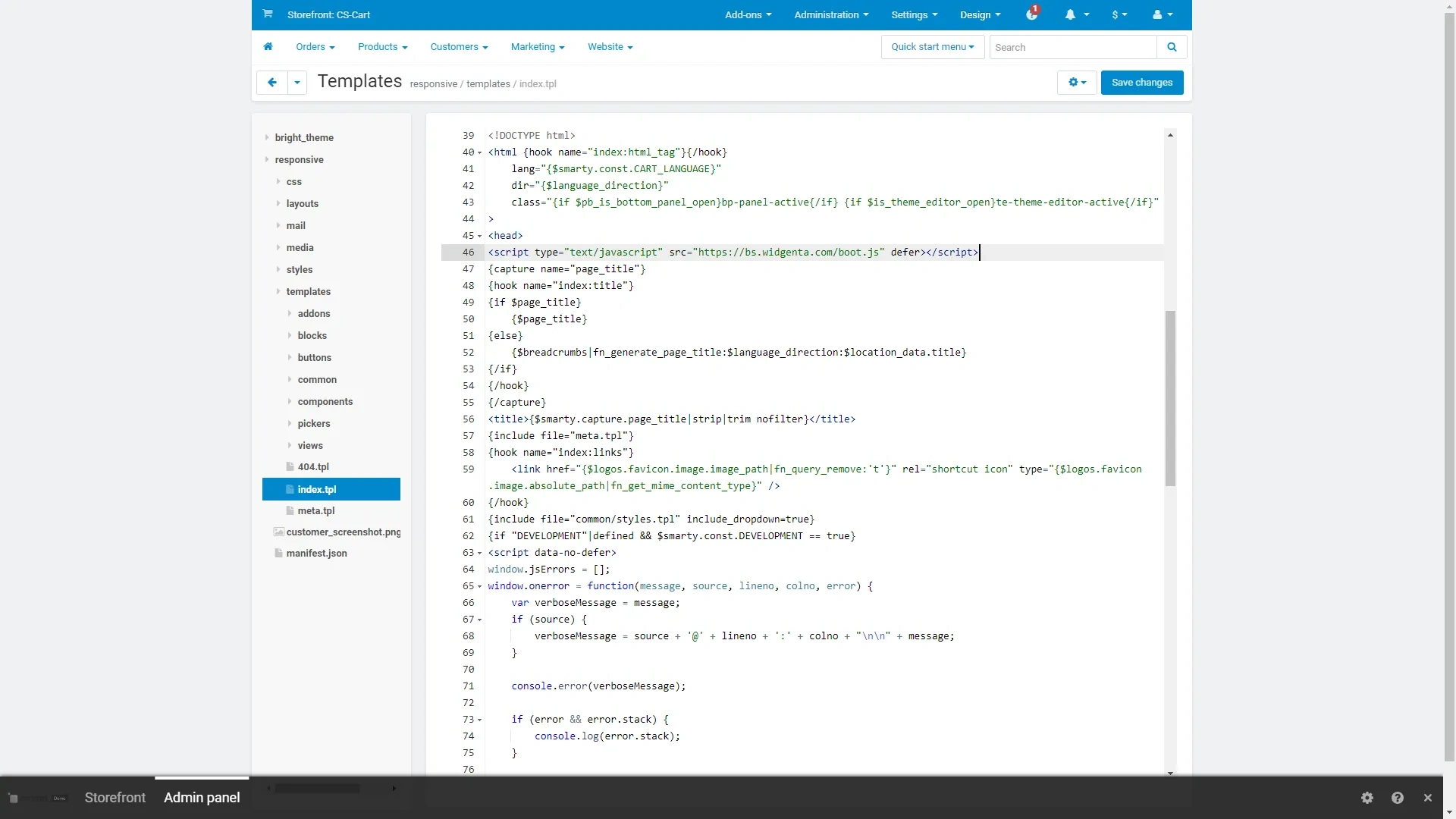
Go down to the <head> tag, paste the first Widgenta code right after it and save the changes with the «Save changes» button in the upper right corner.
Select the menu item «Website» > «Pages».
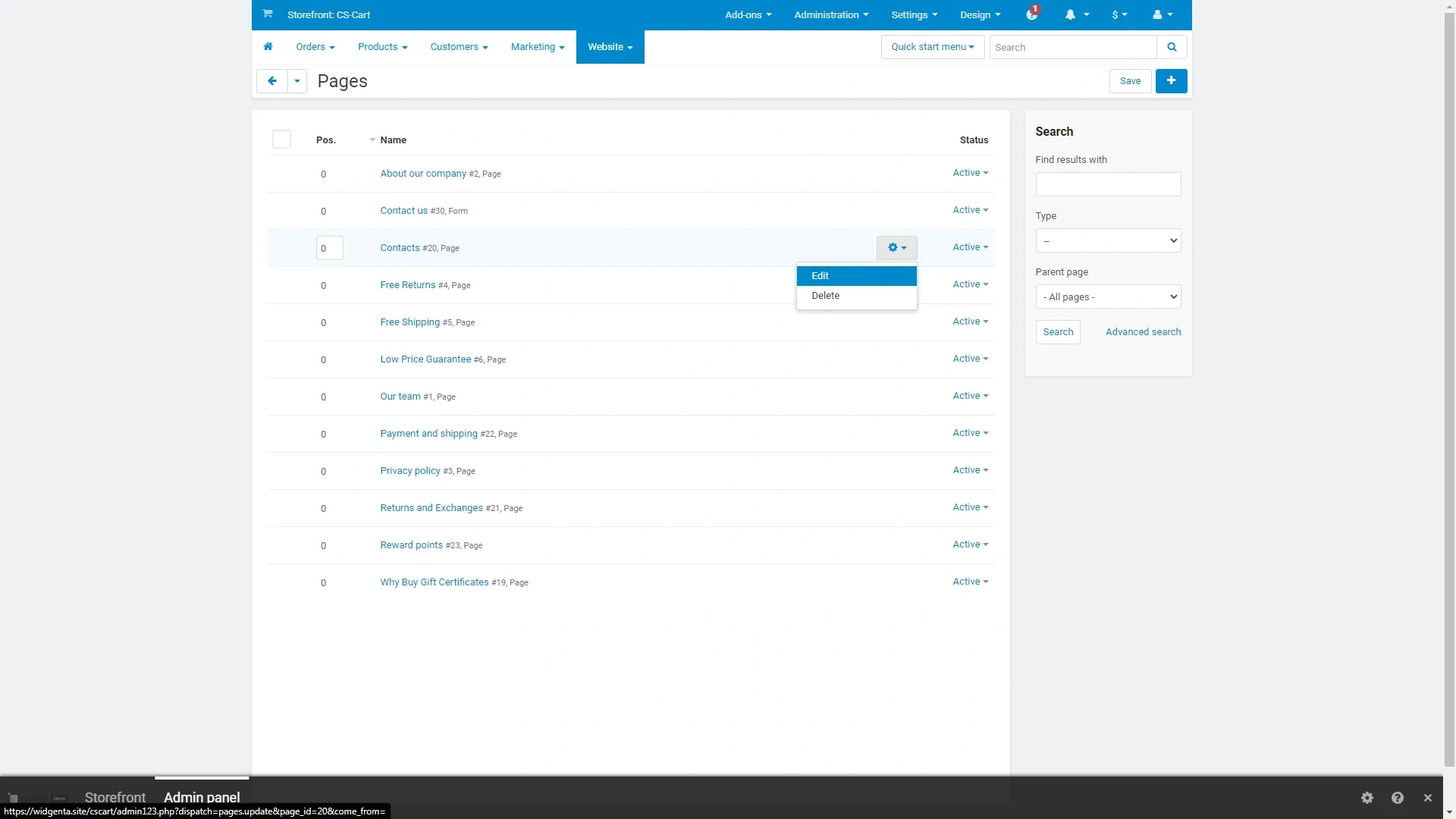
Select the page on which we will place the widget and enter edit mode by clicking on it or by selecting «Edit» in the drop-down menu with a gear icon.
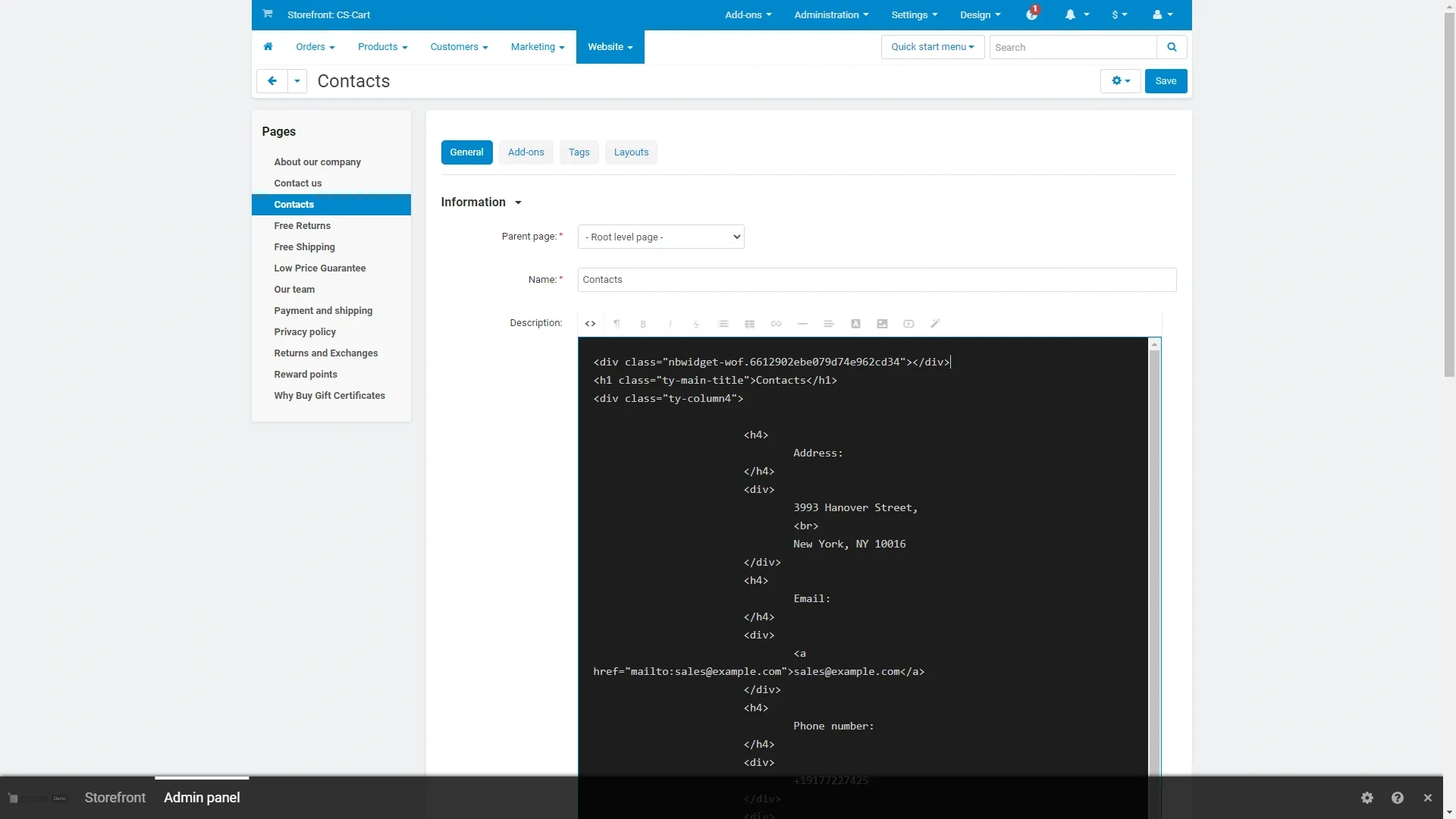
In the page editing mode, select the code display with the «<>» button, paste the second code into the first line and save the changes with the «Save» button in the upper right corner.
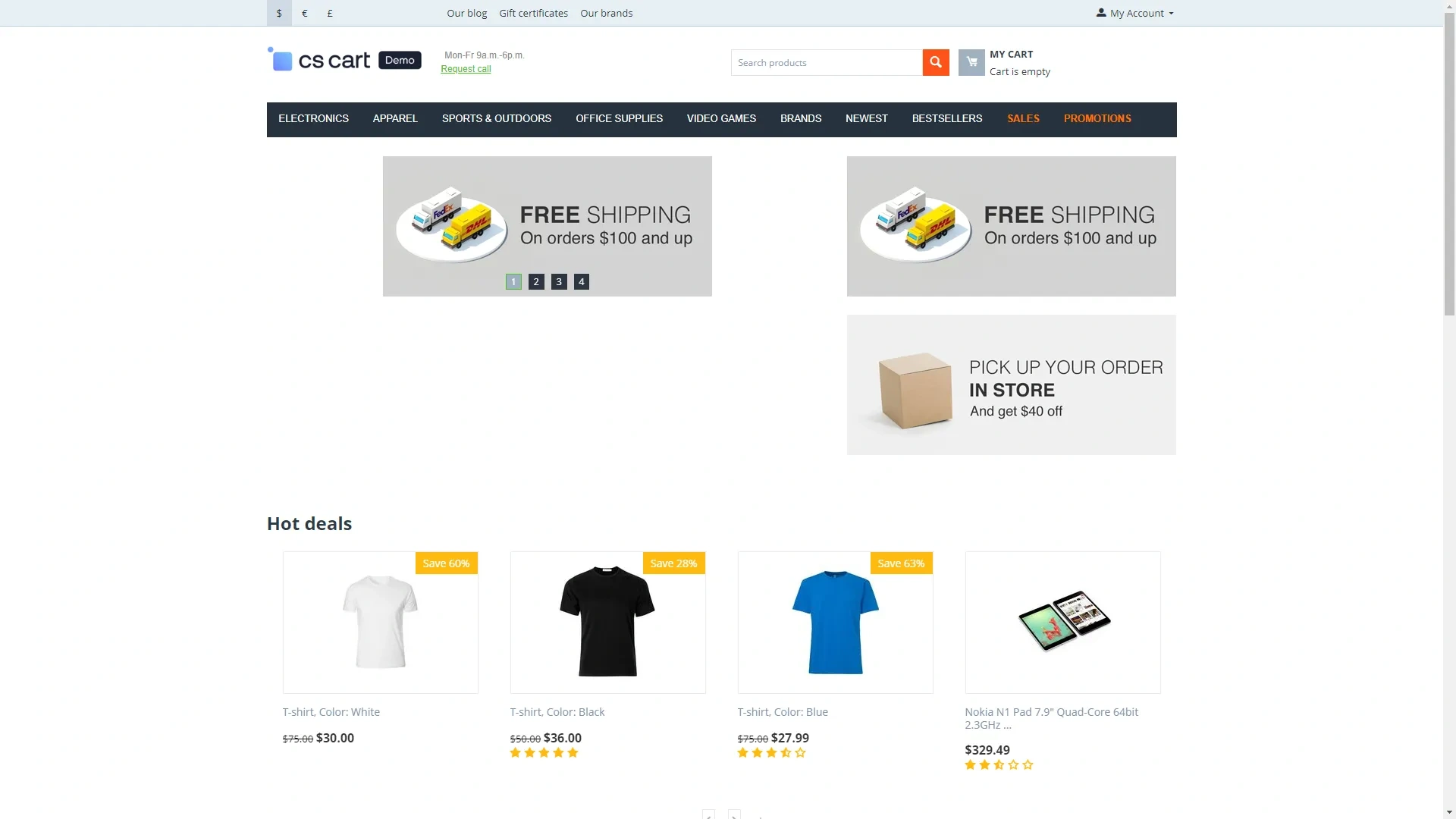
Go to the site and check that the widget is not present, since we placed it on the «Contacts» page.
Go to the "Contacts" page and you will be able to see the widget you have placed.
